RTL-SDR for Budget Radio Astronomy
With the right additional hardware, the RTL-SDR software defined radio can be used as a super cheap radio telescope for radio astronomy experiments such as Hydrogen line detection, meteor scatter and Pulsar observing.
Hydrogen Line
Marcus Leech of Science Radio Laboratories, Inc has released a tutorial document titled “A Budget-Conscious Radio Telescope for 21cm“, (doc version) (pdf here) where he shows:
Two slightly-different designs for a simple, small, effective, radio telescope capable of observing the Sun, and the galactic plane in both continuum and spectral modes, easily able to show the hydrogen line in various parts of the galactic plane.
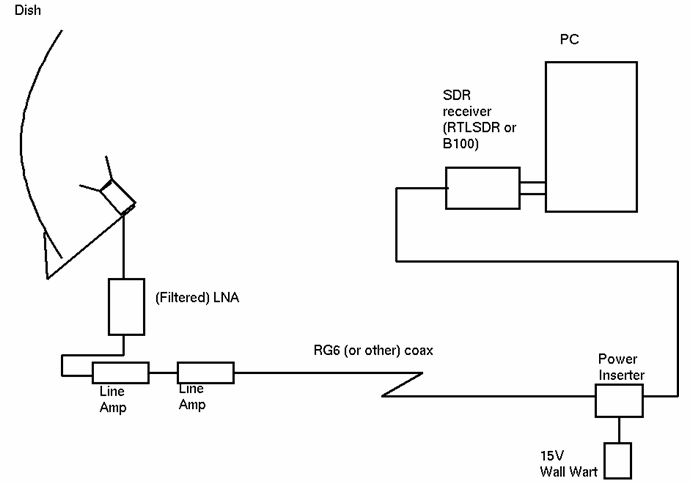
He uses the RTL-SDR as the receiving radio with an LNA (low noise amplifier) and a couple of line amps, a 93cm x 85cm offset satellite dish (potential dish for sale here, and here), and GNU Radio with the simple_ra application. In his results he was able to observe the spectrum of the Galactic Plane, and the Hydrogen Line. Some more information about this project can be found on this Reddit thread.
Here is a link to an interesting gif Marcus made with his RTL-SDR, showing a timelapse of recorded hydrogen emissions over 24 hours. Reddit user patchvonbraun (a.k.a Marcus Leech) writes on this thread an explanation of what is going on in the gif.
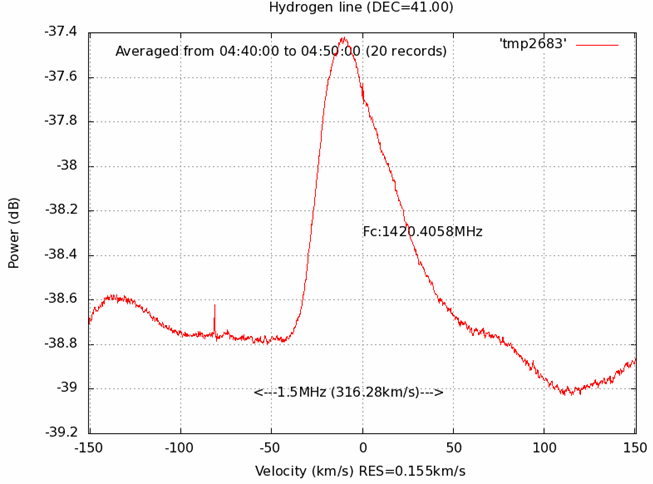
And here is just one of his many resulting graphs shown in the document showing the Hydrogen line.
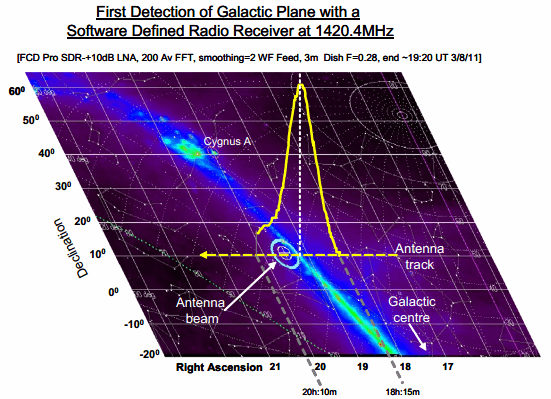
A similar radio astronomy project has previously been done with the Funcube. More information about that project can be found in this pdf file. In that project they used the Funcube, a 3 meter satellite dish and the Radio Eyes software.
However, in this Reddit post patchvonbraun explains that the Funcube’s much smaller bandwidth is problematic, and so the rtl-sdr may actually be better suited for radio astronomy.
This image is from the Funcube project document.
Another related project is the Itty Bitty Telescope (IBT), which does not use SDR, but may be of interest.
Meteor Scatter
Meteor scatter works by receiving a distant but powerful transmitter via reflections off the trails of ionized air that meteors leave behind when they enter the atmosphere. Normally the transmitter would be too far away to receive, but if its able to bounce off the ionized trail in the sky it can reach far over the horizon to your receiver. Typically powerful broadcast FM radio stations, analog TV, and radar signals at around 140 MHz are used. Some amateur radio enthusiasts also use this phenomena as a long range VHF communications tool with their own transmitted signals. See the website www.livemeteors.com for a livestream of a permanently set up RTL-SDR meteor detector.
In Europe typically the Graves radar station can be used for meteor scatter experiments. Graves is a space radar based in France which is designed to track spacecraft and orbital debris. If you are in Europe you can also make use of the Graves radar simply by tuning to its frequency of 143.050 MHz and listening for reflections of its signal bouncing off things like meteors, planes and spacecraft. Since Graves points its signal upwards, it’s unlikely that you’ll directly receive the signal straight from the antenna, instead you’ll only see the reflections from objects.
In other countries old and distant analogue TV stations can be used or FM transmitters can also be used.
To set meteor scatter up, simply use an outdoor antenna to tune to a distant transmitter. It should be far enough away so that you can not be receive the transmitter directly, or the signal should be weak. If you detect a meteor the signal will briefly show up strongly at your receiver. Performance can be enhanced by using a directional antenna like a Yagi to point upwards at the sky in the direction of the transmitter.
We have several post about meteor scatter available on the blog here. Read through them to get a better understanding of the ways in which it can be monitored. You may also be interested in Marcus Leech’s tutorial where he uses the RTL-SDR to detect forward meteor scatter. (doc here) (pdf here)
Pulsar Observing
A pulsar is a rotating neutron star that emits a beam of electromagnetic radiation. If this beam points towards the earth, it can then be observed with a large dish antenna and a radio, like the RTL-SDR.
Pulsars create weakly detectable noise bursts across a wide frequency range. They create these noise bursts at precise intervals (milliseconds to seconds depending on the pulsar), so they can be detected from within the natural noise by performing some mathematical analysis on the data. Typically a few hours of data needs to be received to be able to analyze it, with more time needed for smaller dishes.
One problem is that pulsar signals can suffer from ‘dispersion’ due to many light years of travel through the interstellar medium. This simply means that higher frequencies of the noise burst tend to arrive before the lower frequencies. Mathematical de-dispersion techniques can be used to eliminate this problem enabling one to take advantage of wideband receivers like the RTL-SDR and other SDRs. The more bandwidth collected and de-dispersed, the smaller the dish required for detection.
Pulsar detection requires some pretty large antennas, and a good understanding of the techniques and math required for data processing so it is not for the beginner. See the previous Pulsar posts on this blog for more information.
 If you enjoyed this tutorial you may like our ebook available on Amazon. The Hobbyist’s Guide to the RTL-SDR: Really Cheap Software Defined radio. |