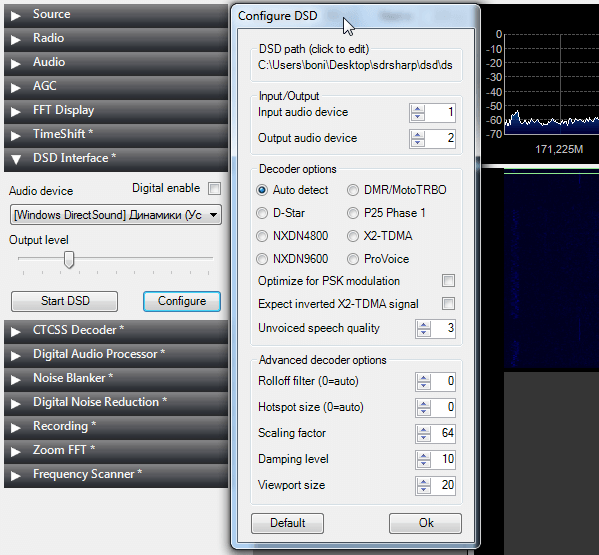
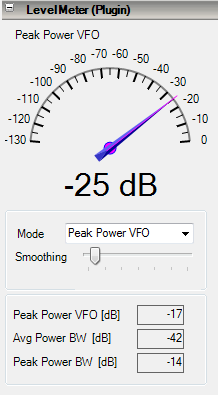
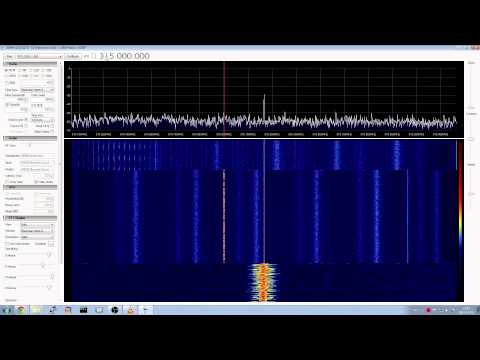
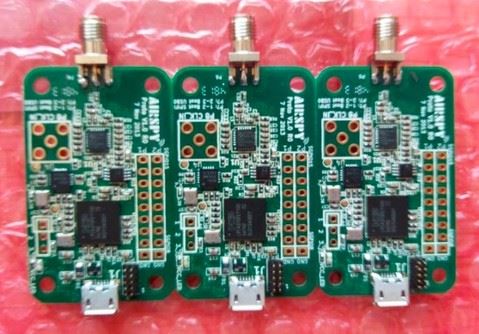
The developer over at rtl-sdr.ru has released a new plugin for SDR# (note in Russian – use Google translate) which allows the digital voice decoder DSD+ to be controlled via a GUI interface from SDR#. To use this plugin you will need to have a copy of DSD+ already downloaded as you will need to point the plugin to the DSD+ install directory. You will also need to have virtual audio cable software such as VAC or VBCable setup.
Information on downloading and setting up DSD+ can be found here.
Update: The author has updated the website with an explanation of why he took it down. He has also restored download functionality so now sdr-install.bat will work again.
The SDR# website, download links and repositories have been taken down and probably won’t be back for a number of days or weeks. This means the sdr-install.bat file will not work as well. If you already have SDR# installed it will continue to work as normal.
We aren’t exactly sure why this has happened, but it seems the author of SDR# did not like the many forks of the software that have been recently popping up. The forks may have been violating the licence that SDR# is under.
If you are new to RTL-SDR, our Quickstart guide has guides to using HDSDR and SDR-CONSOLE to try while SDR# is unavailable. HDSDR and SDR-CONSOLE are two good alternatives to SDR# but are slightly more difficult to set up and use.
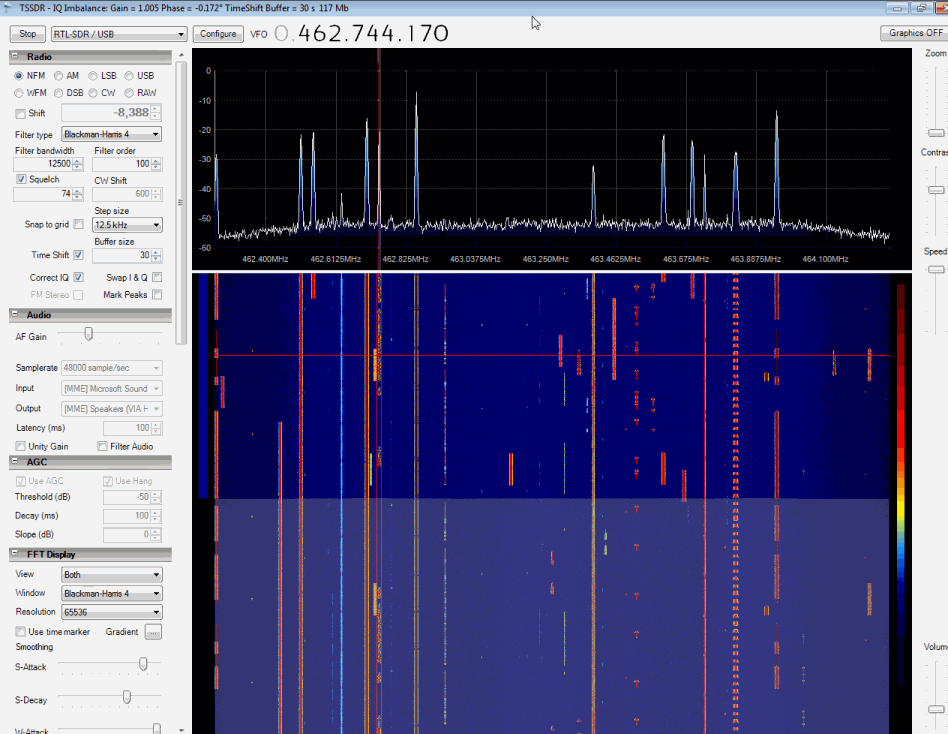
Last month two new SDR# plugins where released on rtl-sdr.ru. The first is TimeShift SDR. This plugin creates a buffer which allows you to listen to any signal at any point in time on the waterfall within the buffer time. It is very useful for catching signals that you might have otherwise missed by being too slow to click on them. Update: Turns out Timeshift SDR isn’t exactly new. But it has recently been updated to work on the latest SDR# releases.
Timeshift SDR# Plugin
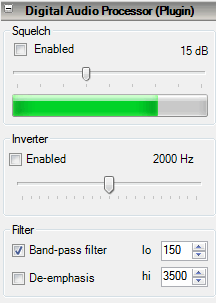
The second plugin is a Digital Audio Processor which adds in a squelch slider bar, an audio inverter, an audio band-pass filter and a de-emphasis filter.
Recently an RTL-SDR.com reader wrote in to let us know about a fork of SDR# written by “Gubo682” which has some added features. Note you will need to be a member of the SDR# Yahoo group to access the download page linked above. The added features and changes to SDR# are
Frequency Manager
– Names show up in spectrum
– Scan button for simple scanning through current group
– Selected group remembered after restart
– Adding new entry: group defaults to current group
– Simple DMR support (see Tips)
– SHIFT click (or SHIFT ENTER) will select according relais input frequency for 2m/70cm
Spectrum Display
– When dragging spectrum left/right, holding SHIFT will keep frequency constant
Waterfall Display
– With the new HF [Radio Freqeuency]/AF [Audio Frequency] button waterfall can be switched to AF. Cursor will be annotated with AF frequency.
– Splitter position (hopefully) restored properly after restart
Recording
– AF recording pauses if squelch closed
DX Cluster Plugin
– Displays DX cluster stations in the spectrum
– Displays currently on-air SW radio stations in spectrum (data from http://www.eibispace.de/)
In addition there is also now a notch filter with adjustable bandwidth which can be applied by right clicking in the new AF (Audio Frequency) mode of the waterfall.
To use with the RTL-SDR, you will need to download the SDRSharp_gubo68_4d.zip file, run install.bat and then manually un-comment the line in the SDRSharp.exe.config text file and then copy over rtlsdr.dll and libusb-1.0.dll from an SDR# installation that was installed using the Quickstart guide method.
You can follow the development of this modified SDR# on the SDRSharp Yahoo group, and specifically in this Yahoo Groups thread.
Modified “Gubo682” SDR# showing DX Cluster Frequency Names, Audio Spectrum and Notch Filter.
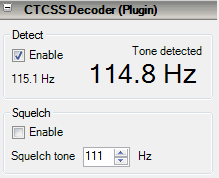
CTCSS is an acronym for Continuous Tone-Coded Squelch System and is a system that is used in shared two way radio systems. It is common for a single radio channel to be shared over a number of user groups for frequency use efficiency. CTCSS uses a special tone to identify each group of users, and this tone is used to prevent a group hearing radio chatter from another group sharing the channel.
If you’re new to the world of low cost software defined radio, and have just been through our Quickstart guide, this YouTube tutorial video by Clayton Smith on using the SDR# program may be useful to you.
In the video Clayton explains how to use SDR# and some of its many features, how to calibrate the RTL-SDR offset in the software, and he also shows how to receive a few interesting signals in his area.
AirSpy is a new SDR Dongle currently being prototyped by the author of the popular SDRSharp software receiver platform. The technical specifications are as follows