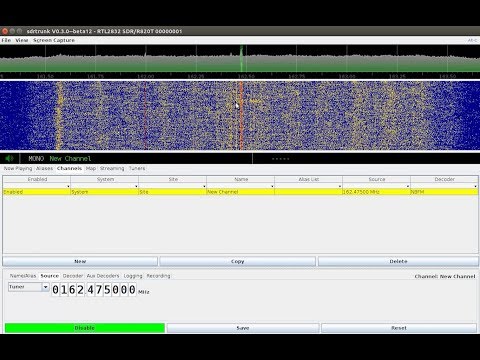
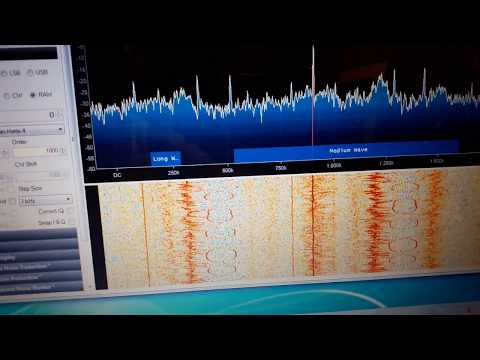
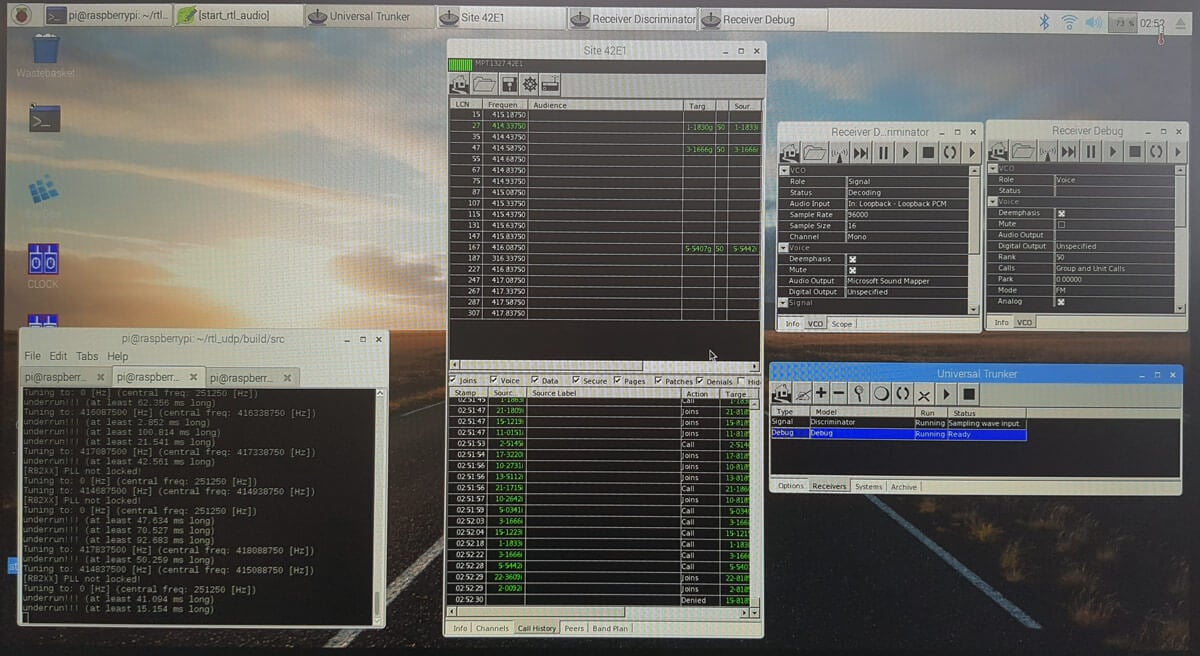
RTL-SDR.com reader Dominic Chen recently wrote in to let us know about a new piece of software he’s created. The software is called d3-waterfall, and is an interactive web based waterfall display. It takes CSV data from the commonly used rtl_power software and produces an interactive labelled waterfall which can be viewed in a web browser. rtl_power is a program that allows RTL-SDRs to produce signal power scans over an arbitrarily wide swath of bandwidth, by quickly hopping between ~2 MHz chunks of live bandwidth.
Dominics software is built using “d3.js” and HTML5. The waterfall axes are automatically labelled, there are multiple color schemes and there is pan/zoom support. The main feature is that it is mouse interactive, so when you mouse over a frequency it shows what the signal is. The default signal frequency data is taken directly from our sister site sigidwiki.com, so it may not be accurate for your particular area. But the labels are editable, so it can be customized.
An example of a previous scan can be seen on Dominic’s website (note that this is a 65mb link so be careful if you are data restricted). The software can be downloaded from its GitHub page.
A typical broadcast FM station can sometimes contain “hidden” subcarriers embedded within the main signal. The subcarriers contain data or audio services.
An example of a data subcarrier hidden within broadcast FM is the “Traffic Message Channel” (TMC). The TMC contains traffic data, and is used on GPS devices that advertise as having live traffic capabilities. TMC data is encrypted so that it can be sold, but is very easily broken. Another data service is RDS-RT+ data which transmits song information, for radios that can display it.
An example of a voice subcarrier (SCA/ACS) might be niche radio stations, such as ethnic stations, elevator music, music for doctors offices etc. Usually a specialized radio is required to receive a SCA channel. In a previous post we showed how a user was able to receive SCA on Windows.
Over on his blog Gough Lui has been investigating the broadcast FM subcarriers in his home town of Sydney, Australia. In his post he looks at TMC, RDS-RT+ and SCA subcarriers and explains a bit about what they are and how they work. He also goes on to receive and decode the subcarriers with an RTL-SDR, gr-rds and GNU Radio. While Gough doesn’t bother to decrypt the TMC service, he can still see when an event occurs and what the even was. Without decryption he just doesn’t know where the location on the event is. For SCA he wrote a GNU Radio program to extract the audio subcarrier and was able to decode audio from a local Indian station for migrants.
Oona Räisänen is a RF hacker and enthusiast who has in the past brought us posts about decoding burger pagers in restaurants, decoding wireless bus signs and FM-RDS with SDR’s like the RTL-SDR. This time she has written an interesting post that shows how she can “fingerprint” radio transmitters by analysing their CTCSS transmissions. CTCSS is short for “Continuous Tone-Coded Squelch System” and is a low frequency tone added on to some transmissions used in handheld radio systems shared by several distinct groups. The CTCSS tone prevents users of a shared system from having to listen to other users talking if they are not part of the same group with the same CTCSS tone frequency. CTCSS provides no means for actually individually identifying a radio.
Frequency vs power heatmap identifying 8 different radios.
With the individual radios identifiable by their cluster centers, each cluster can be assigned a name. Now each subsequent transmission can be compared to each cluster center, and assigned to the closest matching cluster, thus matching a new unknown transmission with a known radio. This makes it easier for someone listening in with no context to follow a conversation.
Outernet is a new L-band satellite services which aims to be a “library in the sky”. Their satellite signal can be received from almost anywhere in the world, and they aim to constantly transmit data like news, weather updates, books, images/videos and other data files. The service is free and can be received with an RTL-SDR, LNA and patch antenna. We have a full tutorial on receiving their service available here.
The “rxOS” decoder, file management system and web interface GUI has recently been updated to version 3.0. This new version has several new features:
Downloaded files are automatically decompressed after downloading, so they can be viewed directly in the Outernet web interface.
An hourly transmission of APRS data which comes from the repeater on board the international space station. APRS messages can now be relayed across the world via the ISS and Outernet.
This Monday they will begin transmitting NOAA weather data (we are unsure if this entails images or text data yet)
Soon they should begin transmitting news data too.
More details on the update can be found on their forum post. To update the service on a CHIP or Pi 3, download the .pkg file from the links on the forum and choose this file in the Update Firmware section of the Outernet settings menu.
An example of some received APRS messages from the Outernet.APRS messages
Every month SDR evangelist Balint Seeber hosts the Cyberspectrum Meetup in San Francisco, where many SDR fans come together to listen to various presentations. The 20th Cyberspectrum SDR meetup has now concluded, and the recorded video is available on YouTube.
Cyberspectrum 20
The talks this time include a very interesting talk by Joe Steinmetz (@usa_satcom) about decoding L-Band weather satellites such as NASA GOES. Previously we made a post regarding GOES where Reddit user devnulling showed his GOES reception setup. To save time, on the video Joe’s talk starts at 00:10:45.
This presentation will cover most aspects of receiving, demodulating and decoding current L-Band Weather Satellite signals (NOAA, MetOp, Meteor, FengYun, GOES). Topics will include hardware, software, de-modulation/decoding techniques, challenges, flows as well as cool sample images and data.
The second talk is titled “Disposable, Stealthy, Cheap SIGINT” is by Chris Kuethe, @kj6gve and delves into topics relating to low cost signal analysis. Chris’ talk starts at 1:45:00. The blurb reads:
This presentation covers some observations and considerations for using inexpensive and compact ARM boards for signals analysis. Topics may include: power budget, air interface, attributability, performance tuning, lolcats and doges.
TETRA is a type of digital voice and trunked radio communications system that stands for “Terrestrial Trunked Radio”. It is used heavily in many parts of the world, except for the USA. Telive is a decoder for TETRA which is compatible with RTL-SDR dongles, and has been around and in use for almost 2 years now. If you have unencrypted TETRA signals available in your area it can be used to listen in on them.
However, now a TETRA experimenter by the handle of “cURLy bOi” has released a new prototype of a telive modification that works on Windows systems. It makes use of the GNU Radio for Windows development. The telive Windows file can be downloaded from curly’s webserver. His reademe file shows how to install and use the software and it reads:
This has been put together as lowest-effort configuration to run telive on Windows system. I have also optimized to process (for example adding the CQPSK block to GRC since the python code in the original telive package is IN FACT some unused part of GNU Radio)
Warning: ——— This package contains pre-compiled binaries that work on my 64-bit system. I have compiled them inside the M-SYS2 package. If you don’t trust me, you can follow the installation guide from telive docs, just be prepared you are going to need a lot of packages for the M-SYS2 (pacman -S gcc automake git wget, etc.)
Install: ——— 1) Download GNU Radio for Windows from http://www.gcndevelopment.com/gnuradio/downloads.htm and install 2) Copy contents of gnuradio_mod to c:\Program Files\GNURadio-3.7\ 3) Download and install M-SYS2 from https://sourceforge.net/projects/msys2/ and install 4) Copy contents of msys_root to your M-SYS2 installation directory 5) Download FFmpeg for Windows (64-bit Shared) from https://ffmpeg.zeranoe.com/builds/ and extract everything from bin to usr\bin in your M-SYS2 installation directory 6) In M-SYS2 shell execute “pacman -S socat” 7) Get GNU Radio Companion (GRC) projects from original telive package at https://github.com/sq5bpf/telive/tree/master/gnuradio-companion (only udp or xmlrpc, pipes won’t work) 8) Open whatever GRC project you want to use and edit it: – Delete the link between (all) Fractional Resampler and UDP Sink – From the modules on the right (ctrl-f to search) drag CQPSK Demod to project (If you don’t see CQPSK Demod then you have messed up #2) – Connect Fractional Resampler -> CQPSK Demod -> UDP Sink – Change UDP Sink Input Type to Float in its properties – Save
Use: —— 1) Open GRC project of your choice (already with the CQPSK Demod box) 2) Use the Project/Execute to run the project from the GRC – OR – If you had headless (without GUI) project, use Project/Generate option to generate top_block.py file in the GRC project directory. Then open GNURadio Command Prompt from Start menu, the use this command c:\Program Files\GNURadio-3.7\gr-python27\python.exe -u c:\path\to\grc\project\top_block.py This will enhance performance. 3) Open new M-SYS2 shell for every channel in that project and execute command “receiver1udp X” where X is the number of each channel in GRC project 4) Open new M-SYS2 shell, resize it to 203×60 and execute: – cd /tetra/bin – ./rxx OR ./rxx_xmlrpc (if you are using XMLRPC GRC project) You can edit these files to match your preferences 5) That’s it, should work.
Note that we have not tested this out ourselves yet and can’t guarantee the file safety or that it works, but we have no reason to believe that it wouldn’t be safe or not work.
Over on his blog author Simone Margaritelli has added a tutorial that shows how to set up a bladeRF to act as a GSM basestation (cell tower). Having your own GSM basestation allows you to create your own private and free GSM network, or for more malicious illegal users it can allow you to create a system for intercepting peoples calls and data. Simone stresses that it is well known that GSM security is broken (and is probably broken by design), and now it is about time that these flaws were fixed.
In his tutorial he uses a single bladeRF x40 and a Raspberry Pi 3 as the processing hardware. The bladeRF is a $420 transmit and receive capable software defined radio with a tuning range of 300 MHz – 3.8 GHz and 12-bit ADC. He also uses a battery pack which makes the whole thing portable. The software used is Yate and YateBTS which is open source GSM basestation software. Installation as shown in the tutorial is as simple as doing a git clone, running a few compilation lines and doing some simple text configuration. Once set up mobile phones will automatically connect to the basestation due to the design of GSM.
Once setup you can go further and create your own private GSM network, or make the whole thing act as a “man-in-the-middle” proxy to a legitimate GSM USB dongle, which would allow you to sniff the traffic on anyone who unknowingly connects to your basestation. This is similar to how a “Stingray” operates, which is a IMSI-catcher device used by law enforcement to intercept and track GSM communications. More information on using the bladeRF as an IMSI catcher with YateBTS can be found in this white paper.
bladeRF x40, Raspberry Pi 3 and a battery pack. Running a GSM basestation.
Back in September we posted a tutorial that showed how to set up an Outernet receiver with a Raspberry Pi running their rxOS software and an RTL-SDR, LNA and patch antenna. Recently, Outernet have released a new decoder for Windows and Linux which is very easy to install and run. Outernet is an L-band satellite data service which can be received almost anywhere in the world with an RTL-SDR. They aim to be a “library in the sky”, constantly broadcasting public data like news, books, images/videos and other data files.
The new decoder is a Linux machine that runs in a self contained multiplatform Virtual Box virtual machine. This means that it is a standalone package, and it comes included with the OS, decoder, and all the files needed to make it run. Using a virtual machine eliminates any installation issues due to missing dependencies or libraries. Running the VM in Windows is as easy as double clicking on a .exe file to open it up. Note that you’ll need a relatively modern machine that supports hardware virtualization support (VT-x) (Core 2 or newer). The virtual machine itself is lightweight, and uses less than 50MB of RAM, and has very low CPU usage.
At the moment, the decoder writes files downloaded from the Outernet service to a directory stored in C:\Outernet\downloads. Unlike the Raspberry Pi decoder, there is no web interface for accessing the content, though this will probably be added in future builds. The files can be directly accessed in the Windows/Linux file managers.
To set up the VM on a Windows machine:
Download the Windows .exe archive and open it. When prompted, extract the files to a convenient folder on your PC.
Plug in your RTL-SDR and LNA, and set up your L-band antenna.
In the extracted folder run the outernet.exe file once. This will open the decoder and the first time it is run it will automatically create a folder in C:\Outernet.
If you are in the Europe/Africa and use the Alphasat satellite then you can ignore this step. If you are in another region, close the opened VM, then go to C:\Outernet\Satellites.Available, and then copy the file corresponding to the satellite used in your part of the world over to C:\Outernet\Satellites.Selected. Now reopen the outernet.exe VM.
The decoder should now be showing a good SNR value >2 in the top right information, and the State: should show FRAME LK. The bottom right window should also scroll “Packed written to socket.”
After a few minutes check the C:\Outernet\cache folder for pieces of files. Later check the C:\Outernet\downloads folder for completed files.
Further instructions can be found on their Windows Readme file. Note that as there is no web browser for the files, some will be downloaded as GZipped files, and will need to be unzipped to be viewed. For more information on the Outernet service as well as the hardware requirements see our previous tutorial.
We tested out the VM on a Windows laptop for a few hours and was able to receive several GZipped Wikipedia webpages as well as a photo, as shown in the screenshot below.
Files downloaded from Outernet (left). Outernet decoder running in VM (right).