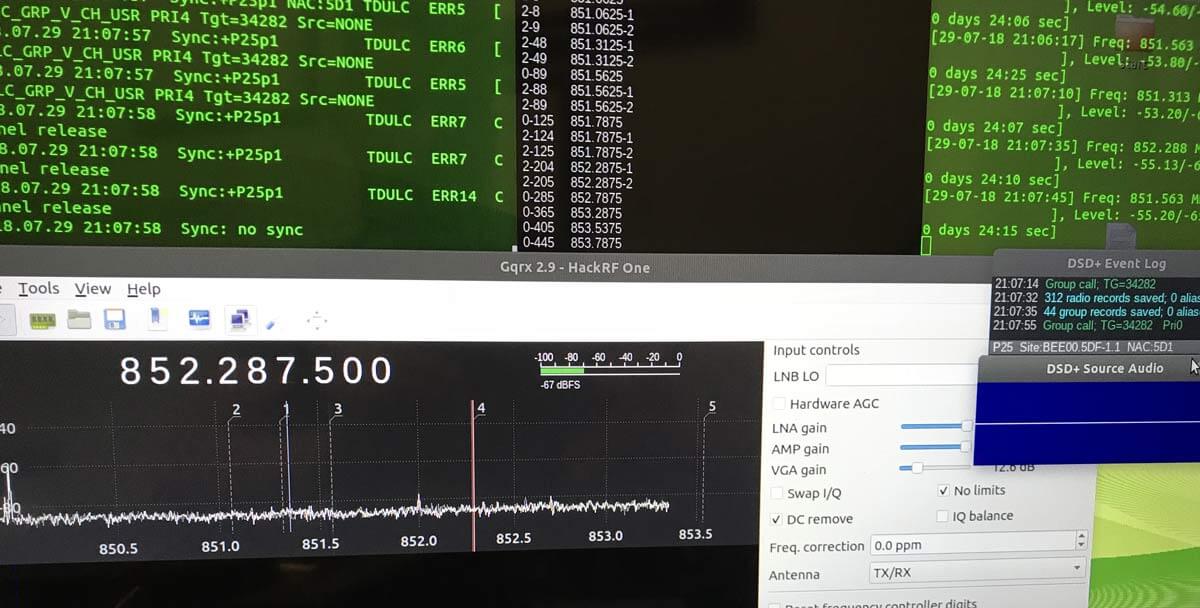
Thanks to Tony C who wrote in and wanted to share a method that he's found to listen to multiple DMR digital voice channels in Linux. DSD+ is a Windows program that can be used to decode DMR. Although for Windows it is possible to use in Linux via the emulator known as Wine, and pipe the digital audio to it from GQRX. In the quote below, DSD+ "FL" is short for "Fast Lane" which is DSD+'s paid beta service that you can join to get newer code with more features. Tony writes:
I believe that can bridge the gap between using Linux with the ease of use programs of windows. As I am sure we both can attest that setting up trunk tracking / anything SDR is not as easy on Linux as it is on windows. For example, DSDplus FL makes it extremely easy to identify/decode DMR networks. There are similar things that can be done on Linux, but as I stated, it isn’t as easy to setup.
So the method that I setup and have been using successfully, using Ubuntu and a HackRF, setting up DSDplus 2.98 on wine, that gets audio piped from GQRX using a virtual sink as outlined in https://www.hagensieker.com/wordpress/2018/04/29/dsd-in-ubuntu-18-04/. It was a great blog, but I felt that it was incomplete when trying to get all the voice traffic passed on a network, as it only works on 1 channel at a time.
So I found the control channel for the network and created 5 bookmarks in GQRX and gave them the tag “DMR”. From there I downloaded gqrx scanner https://github.com/neural75/gqrx-scanner followed the install and setup instructions. From there I activated the scanner and GQRX will cycle through the frequencies and when voice traffic is passed, it will stop, and DSDPLUS via wine will decode and record the audio.
[The screenshot] example was for P25, but it has worked in connect+ as well, the only thing is that you cannot bookmark the control channel. I know other options exist out there such as SDRtrunk / op25 which I have used, but I believe this provides a good alternative to those who have used windows and are comfortable with the ease of use of dsdplus FL but want to be on the Linux OS.
Recently Arstechnica ran a story about how during this August's Black Hat security conference, researchers Billy Rios and Jonathan Butts revealed that a HackRF software defined radio could be used to withhold a scheduled dose of insulin from a Medtronic Insulin Pump. An insulin pump is a device that attaches to the body of a diabetic person and deliveries short bursts of insulin throughout the day. The Medtronic Insulin Pump has a wireless remote control function that can be exploited with the HackRF. About the exploit MiniMed wrote in response:
In May 2018, an external security researcher notified Medtronic of a potential security vulnerability with the MiniMedTM Paradigm™ family of insulin pumps and corresponding remote controller. We assessed the vulnerability and today issued an advisory, which was reviewed and approved by the FDA, ICS-CERT and Whitescope.
This vulnerability impacts only the subset of users who use a remote controller to deliver the Easy Bolus™ to their insulin pump. In the advisory, as well as through notifications to healthcare professionals and patients, we communicate some precautions that users of the remote controller can take to minimize risk and protect the security of their pump.
As part of our commitment to customer safety and device security, Medtronic is working closely with industry regulators and researchers to anticipate and respond to potential risks. In addition to our ongoing work with the security community, Medtronic has already taken several concrete actions to enhance device security and will continue to make significant investments to improve device security protection.
In addition to this wireless hack they also revealed issues with Medtronic's pacemaker, where they found that they could hack it via compromised programming hardware, and cause it to deliver incorrect shock treatments.
Earlier in the year we also posted about how an RTL-SDR could be used to sniff RF data packets from a Minimed Insulin pump using the rtlmm software, and back in 2016 we posted how data could be sniffed from an implanted defibrillator.
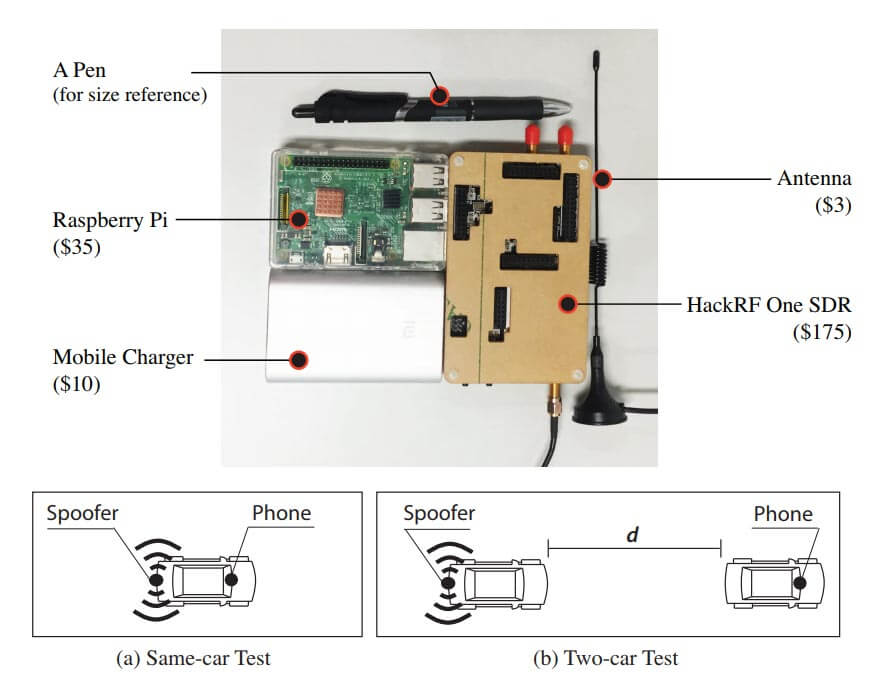
Researchers at Virginia Tech, the University of Electronic Science and Technology of China and Microsoft recently released a paper discussing how they were able to perform a GPS spoofing attack that was able to divert drivers to a wrong destination (pdf) without being noticed. The hardware they used to perform the attack was low cost and made from off the shelf hardware. It consisted of a Raspberry Pi 3, HackRF SDR, small whip antenna and a mobile battery pack, together forming a total cost of only $225. The HackRF is a transmit capable SDR.
The idea is to use the HackRF to create a fake GPS signal that causes Google Maps running on an Android phone to believe that it's current location is different. They use a clever algorithm that ensures that the spoofed GPS location remains consistent with the actual physical road networks, to avoid the driver noticing that anything is wrong.
The attack is limited in that it relies on the driver paying attention only to the turn by turn directions, and not looking closely at the map, or having knowledge of the roads already. For example, spoofing to a nearby location on another road can make the GPS give the wrong 'left/right' audio direction. However, in their real world tests they were able to show that 95% of test subjects followed the spoofed navigation to an incorrect destination.
In past posts we've seen the HackRF and other transmit capable SDRs used to spoof GPS in other situations too. For example some players of the once popular Pokemon Go augmented reality game were cheating by using a HackRF to spoof GPS. Others have used GPS spoofing to bypass drone no-fly restrictions, and divert a superyacht. It is also believed that the Iranian government used GPS spoofing to safely divert and capture an American stealth drone back in 2011.
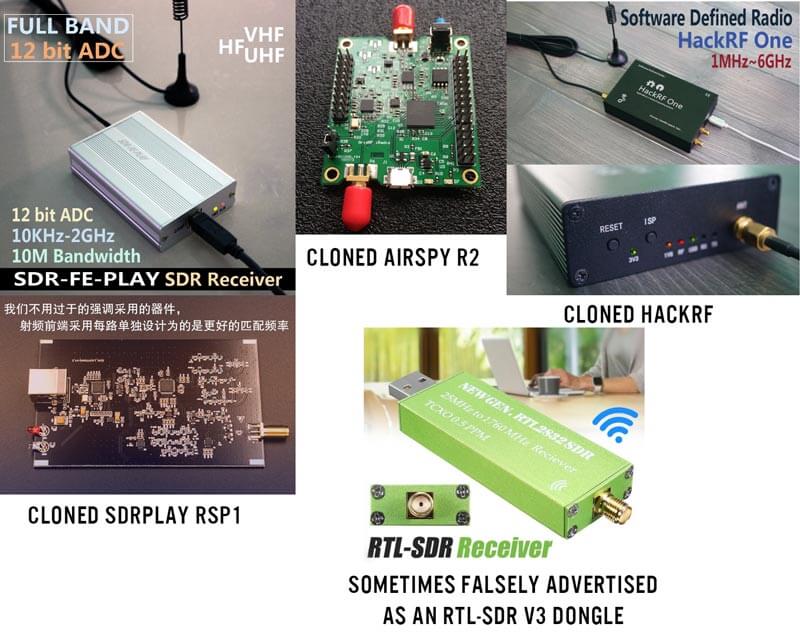
Recently we've found that there are now cloned units of SDRplay RSP1 and Airspy R2 units appearing on Aliexpress and eBay. (We won't link them here to avoid improving the Google ranking of the clone listings). This post is just a warning and reminder that these are not official products of SDRplay or Airspy, and as such you would not receive any support if something went wrong with them. The performance and long term software support of the clones also isn't known. Buying clones also damages the original developers abilities to bring out exciting new products like we've seen so far constantly with Airspy and SDRplay.
SDRplay
We've been in contact with SDRplay for a statement and they believe that the unit is a clone of the older and now discontinued RSP1, and not the RSP1A, despite the listings advertising RSP1A features such as additional filtering. SDRplay note from the pictures of the circuit board that the cloned unit's circuit board looks like an RSP1, and that the listing description is probably just blindly copied directly from the official RSP1A description.
Currently given that the price of the cloned RSP1 is $139, which is higher than the $109 cost of an original and newer model RSP1A, we don't see many taking up the offer.
Airspy
The Airspy R2 has also recently been cloned and now appears on Aliexpress with the lowest price being US$139 without any metal enclosure. Given that the price of an original Airspy R2 with metal enclosure is US$169, we again don't see many taking up the offer of the clone with such a small price difference.
HackRF
The HackRF is a different story in respect to clones. The HackRF design and circuits are open source, so unlike the closed source designs of the SDRplay and Airspy, in a way HackRF clones are actually encouraged and are legal. For some time now it's been possible to find cloned HackRF's on Aliexpress for only US$120 at the lowest, and from $150 - $200 including antennas and TCXO upgrades. This is quite a saving on the $299+ cost of the original HackRF. Reports from buyers indicate that the HackRF clones are actually decent and work well. The advantage of buying the original version is that you support Michael Ossmann, the creator of the HackRF, and may potentially get a better performing unit.
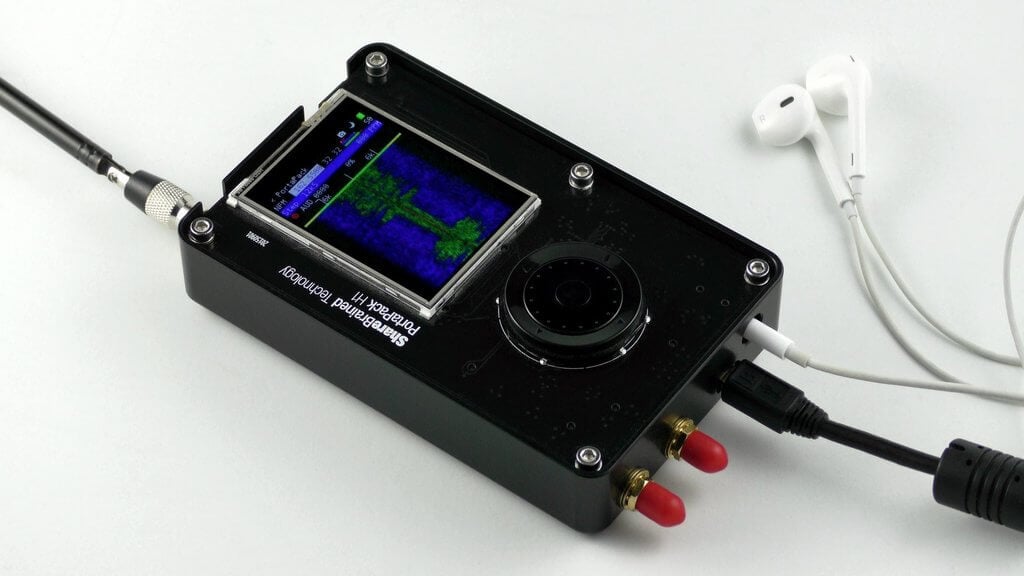
We've also seen clones of the HackRF Portapack on Aliexpress, which is an add-on for the HackRF that allows you to go portable. The clones go for $139 vs $220 for the original. No word yet on the quality.
RTL-SDR V3
We also note that recently there have been several green color RTL-SDRs released on the market with some being advertised as "RTL-SDR Blog V3" units. These are not our units, and are not even actual clones of the V3. These green units appear to just be standard RTL-SDRs without any real improvements apart from a TCXO. Some listings even advertise the V3's bias tee and HF features, but they are not implemented. Real V3 units come in a silver enclosure branded with RTL-SDR.COM.
Final Words
If you know how China works, you'll understand that it's highly unlikely that there is any legal recourse for SDRplay and Airspy to remove these products from sale. Once a product is popular it is almost a given that it will be cloned. It's possible that the clones might be able to be gimped via blacklisting official software, but that the companies would implement this is a stretch, and would probably be easy to get around. In the end while not ethical in a business fairness sense, these clones may be good for the consumer as they force the original designers to lower their prices and improve added value services.
If readers are interested in a comparison between the clones and original units, please let us know as we may consider an article on it.
Over on YouTube The Thought Emporium channel has been working on creating a "WiFi Camera" over the past few weeks. The idea is to essentially create a small radio telescope that can "see" WiFi signals, by generating a heatmap of WiFi signal strength. This is done with a directional helical 2.4 GHz antenna and motorized rotator that incrementally steps the antenna through various angles. After each movement step a HackRF and Python script is used to measure WiFi signal strength for a brief moment, and then the rotator moves onto the next angle. The helical antenna and rotator that they created are made out of PVC pipe plastic and wood, and are designed to be built by anyone with basic workshop tools like a bandsaw.
The final results show that they've been able to successfully generate heatmaps that can be overlaid on top of a photo. The areas that show higher signal strength correlate with areas on the photo where WiFi routers are placed, so the results appear to be accurate. In the future they hope to expand this idea and create a skyward pointing radio telescope for generating images of the galactic hydrogen line, and of satellites.
The Thought Emporiums' WiFi Heatmap Building Scan Results
The videos are split into three parts. The first two videos show the build process of the antennas and rotator, whilst the third video shows the final results.
DIY Radio Telescope Version 2: Wifi vision - Part 1
The Angriest Radio Telescope - Wifi Camera Part 2
Building a Camera That Can See Wifi | Part 3 SUCCESS!
Over on YouTube Tech Minds has uploaded a new video where he shows how he can use his HackRF SDR with the SDRAngel software to easily transmit voice to a local ham radio repeater. If you are unfamiliar with ham radio, a ham repeater is simply a radio station that receives voice or other signals on a certain ham radio frequency, and re-transmits the signal with stronger power on another frequency. This allows communications to be receivable over a much larger distance.
SDRAngel is a very nice piece of SDR software that has controls for TX capable SDR's like the HackRF. In the video Tech Minds shows the HackRF being used as a transmitter, with it transmitting to a repeater at 145.137 MHz. An RTL-SDR is then used to listen to the repeater output at 145.737 MHz. With this set up he is able to contact a friend via the repeater easily.
It doesn't appear that Tech Minds is using any sort of external amplifier, so this shows that the HackRF is powerful enough to hit local repeaters just by itself.
Transmitting With A HackRF One Via My Local Ham Radio Repeater
Over on the Wireless LAN Professional Podcast Keith and Blake Krone discuss the HackRF, PortaPack and the Havoc firmware in episode 138. The HackRF is a US$299 transmit capable SDR which has been very popular in the past as it was one of the first affordable TX capable SDRs to hit the market. The PortaPack is a US$220 add on which allows you to go portable with the HackRF. And finally Havoc is a third party firmware for the HackRF+PortaPack which enables multiple RX and TX capable features.
The PortaPack is a US$220 add-on for the HackRF software defined radio (HackRF + PortaPack + Accessory Amazon bundle) which allows you to go portable with the HackRF and a battery pack. It features a small touchscreen LCD and an iPod like control wheel that is used to control custom HackRF firmware which includes an audio receiver, several built in digital decoders and transmitters too. With the PortaPack no PC is required to receive or transmit with the HackRF.
Of course as you are fixed to custom firmware, it's not possible to run any software that has already been developed for Windows or Linux systems in the past. The official firmware created by the PortaPack developer Jared Boone has several decoders and transmitters built into it, but the third party 'Havoc' firmware by 'furrtek' is really what you'll want to use with it since it contains many more decoders and transmit options.
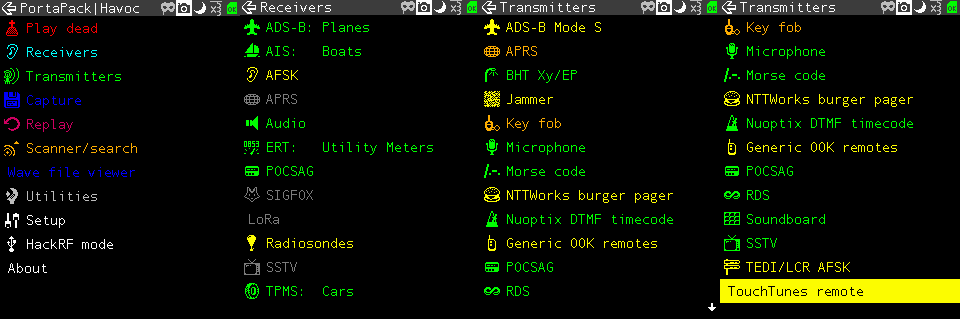
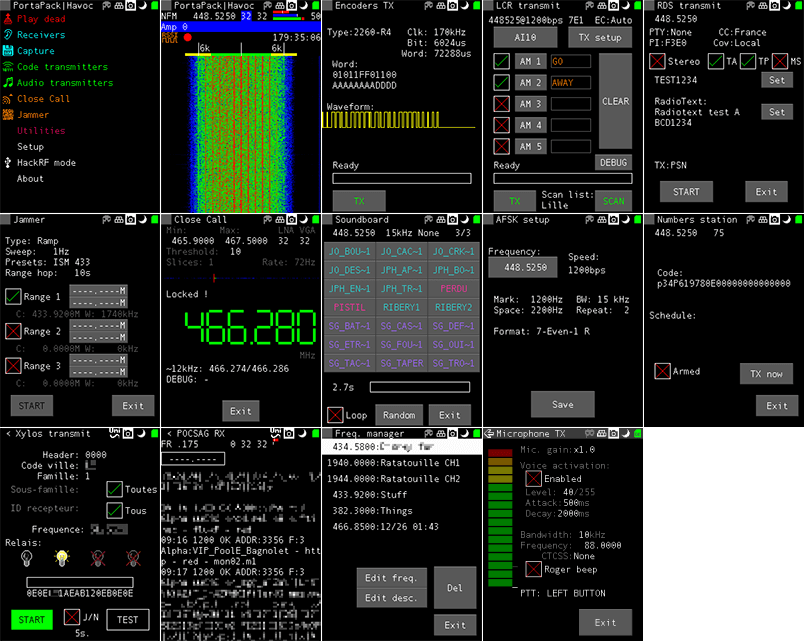
As of the time of this post the currently available decoders and transmit options can be seen in the screenshots below. The ones in green are almost fully implemented, the ones in yellow are working with some features missing, and the ones in grey are planned to be implemented in the future. Note that for the transmitter options, there are some there that could really land you in trouble with the law so be very careful to exercise caution and only transmit what you are legally allowed to.
Some screenshots from the HackRF Portapack Havoc FirmwareMore Havoc firmware screenshots from the GitHub page.
Although the PortaPack was released several years ago we never did a review on it as the firmware was not developed very far beyond listening to audio and implementing a few transmitters. But over time the Havok firmware, as well as the official firmware has been developed further, opening up many new interesting applications for the PortaPack.
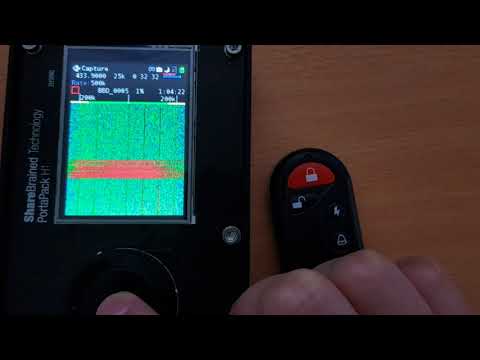
Doing a replay attack on a wireless keyfob using the PortaPack.
Testing the PortaPack with the Havoc Firmware
Capture and Replay
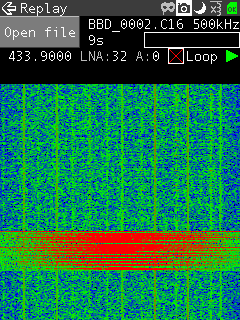
One of the best things about the PortaPack is that it makes capture and replay of wireless signals like those from ISM band remote controls extremely easy. To create a capture we just need to enter the "Capture" menu, set the frequency of the remote key, press the red 'R' Record button and then press the key on the remote. Then stop the recording to save it to the SD Card.
Now you can go into the Replay menu, select the file that you just recorded and hit play. The exact same signal will be transmitted over the air, effectively replacing your remote key.
We tested this using a simple remote alarm system and it worked flawlessly first time. The video below shows how easy the whole process is.