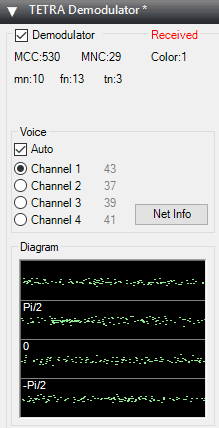
Last week we posted about the release of a new TETRA decoder plugin for SDR#. The plugin made setting up a TETRA decoder significantly easier compared to previous methods, but it still required the installation and use of the MSYS2 environment on Windows.
Thanks to reader Zlati for letting us know that the TETRA plugin has recently been updated once again and now no longer requires MSYS2 to be installed first. Now it is as easy to install as any other plugin, just drop the .dlls into the SDR# folder and add the magicline to the plugins.xml file. We tested it out and decoding worked fine. At the moment the "Net info" button is not working however.
In the future news and download lines for newer versions will probably be available on the programmers radioscanner.ru forum thread which is available here (use Google Translate to read): http://www.radioscanner.ru/forum/topic50051-9.html
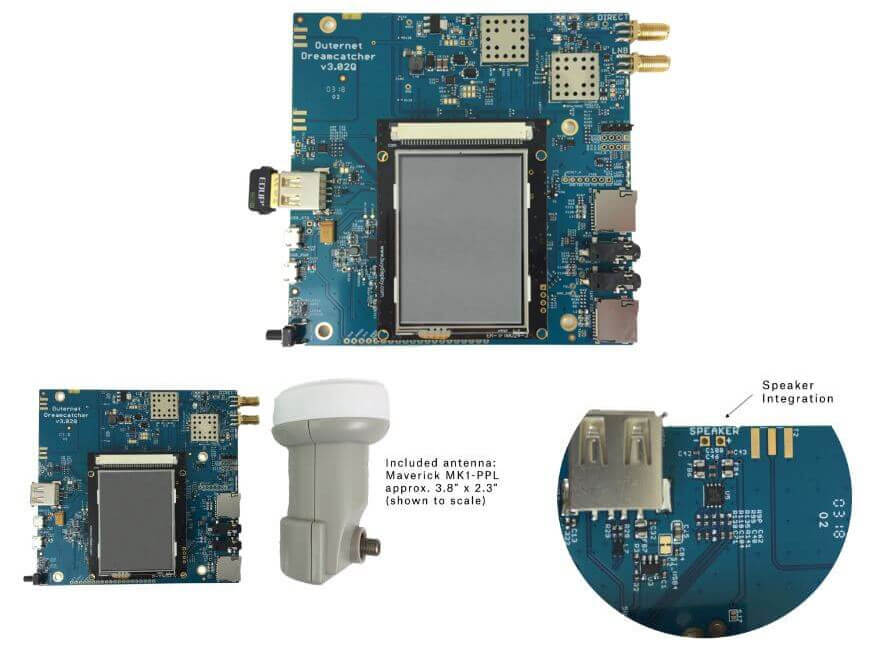
Outernet Dreamcatcher Board running with a cheap satellite TV LNB
Outernet 3.0 is gearing up for launch soon, and just today they've released a blog post introducing us to the RF protocol technology behind the new service. If you weren't already aware, Outernet is a free satellite based information service that aims to be a sort of 'library in the sky'. Their aim to to have satellites constantly broadcasting down weather, news, books, radio, web pages, and files to everyone in the world. As it's satellite based this is censorship resistant, and useful for remote/marine areas without or with slow/capped internet access.
Originally a few years ago they started with a 12 GHz DVB-S satellites service that gave 1GB of content a day, but that service required a large dish antenna which severely hampered user adoption. Their second attempt was with an L-band service that only needed a small patch antenna. This service used RTL-SDR dongles as the receiver, so it was very cheap to set up. Unfortunately the L-band service had a very slow data rates (less than 20MB of content a day), and leasing an L-band transmitter on a satellite proved to be far too expensive for Outernet to continue with. Both these services have now been discontinued.
Outernet 3.0 aims to fix their previous issues, giving us a service that provides over 300MB of data a day, with a relatively cheap US$99 receiver that is small and easy to set up. The new receiver uses a standard Ku-Band LNB as the antenna, which is very cheaply available as they are often used for satellite TV reception. The receiver itself is a custom PCB containing a hardware (non-SDR based) receiver with a LoRa decoder.
LoRa is an RF protocol that is most often associated with small Internet of Things (IoT) devices, but Outernet have chosen it as their satellite protocol for Outernet 3.0 because it is very tolerant to interference. In Outernet 3.0 the LNB is pointed directly at the satellite without any directive satellite dish, meaning that interference from other satellites can be a problem. But LoRa solves that by being tolerant to interference. From the uplink facility to the satellite and back to their base in Chicago the LoRa signal travels 71,572 km, making it the longest LoRa signal ever transmitted.
According to notes in their forums Outernet 3.0 is going to be first available only in North America. Europe should follow shortly after, and then eventually other regions too. When ready, their 'Dreamcatcher 3.0' receiver and computing hardware is expected to be released for US$99 on their store. You can sign up for their email list on that page to be notified upon release.
Also as a bonus, for those interested in just LoRa, the Dreamcatcher 3.0 is also going to be able to transmit LoRa at frequencies anywhere between 1 MHz to 6 GHz, making it great for setting up long range LoRa links. This might be an interesting idea for hams to play with.
Over on YouTube user Tech Minds has uploaded a useful video which shows how to set up DMR decoding with SDR#, VB-Cable, DSD+ and an RTL-SDR dongle. He also uses the DSD plugin for SDR# which makes controlling the command line DSD+ software a little easier. If you are interested we also have a short tutorial on DMR/P25 decoding available here. The video starts from downloading and installing the software, and explains every step very carefully, so it is a very good starting video for beginners.
DMR (aka MotoTRBO or TRBO) is a digital voice protocol used by Motorola radios. Software like DSD+ is required to listen to it, but it can only listen in if the signal is unencrypted.
Tech Minds has also uploaded several other tutorial videos to his channel over the last few months including guides on how to set up the ham-it-up upconverter, ADS-B tracking, using a Raspberry Pi to create a FM transmitter and more.
How To Setup SDR # Sharp To Decode DMR Digitial Using DSD Plus And An RTL SDR Receiver on Windows 10
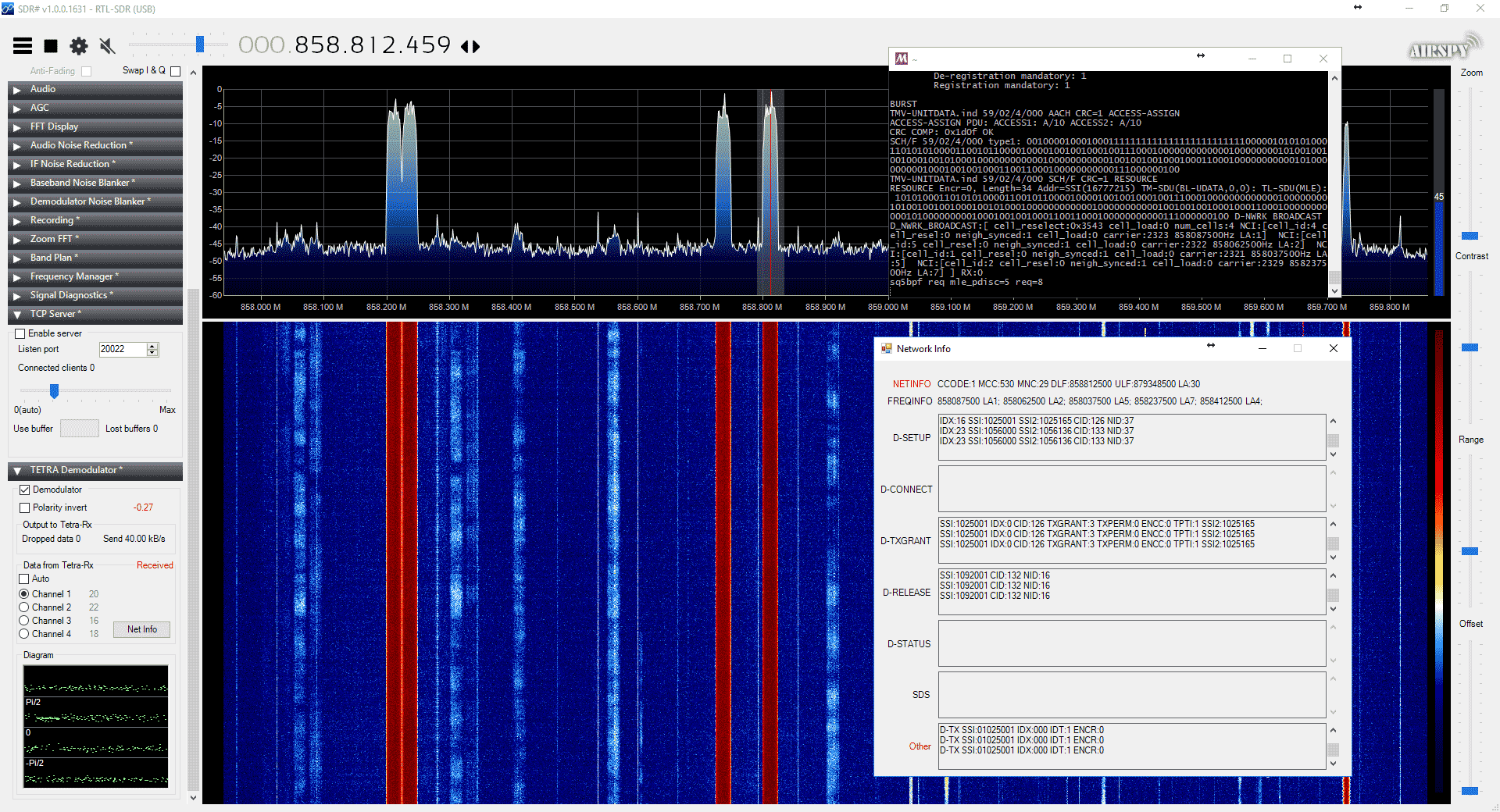
Back in 2016 cURLy bOi released a Windows port of the Linux based "Telive" TETRA decoder. Now the latest development in TETRA decoders is that a TETRA decoder plugin for the SDR# software has been released. This makes setting up a TETRA decoder significantly simpler than before.
The plugin doesn't seem to be officially released anywhere, but we did find it thanks to @aborgnino's tweets on Twitter, and he found it on a Russian language radio scanner forum. The plugin is available as a direct download zip from here, but we suggest browsing to the last few posts in the forum thread to find the latest version.
Installing the plugin is a little more difficult that usual, as you first need to install MSYS2 which is a compatibility layer for Linux programs. The full installation instructions are included in the README.TXT in the zip file. One clarification from us: you need to copy the files in the msys_root/usr/bin folder from the zip file into the /usr/bin folder that is in your MSYS2 installation directory.
We tested the plugin and found it to work well without any problems. With the plugin turned on you just need to simply tune to a TETRA signal in WFM mode, and you will instantly be decoding the audio.
TETRA is a type of digital voice and trunked radio communications system that stands for “Terrestrial Trunked Radio”. It is used heavily in many parts of the world, except for the USA. If you have unencrypted TETRA signals available in your area then you can listen in on them with an appropriate SDR like an RTL-SDR and decoder software like the aforementioned plugin.
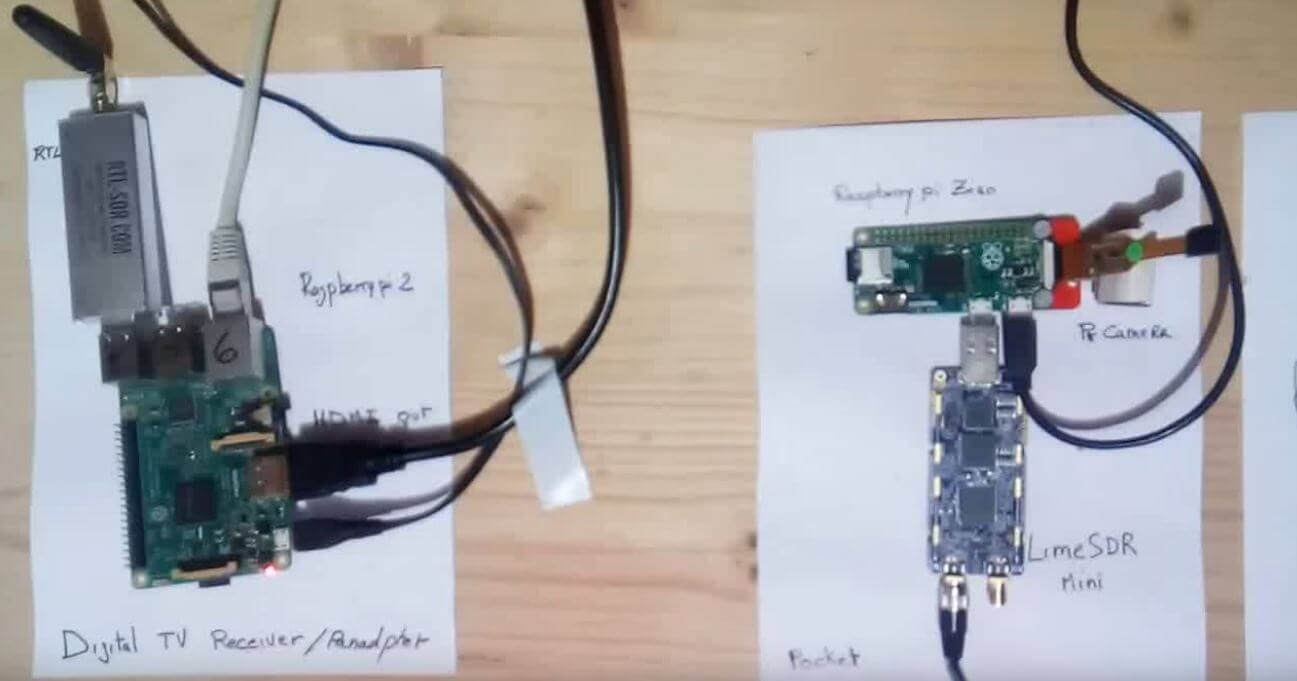
Over on YouTube user Evariste Okcestbon has uploaded a video showing his simple pocket DATV system that consists of a LimeSDR running on a Raspberry Pi Zero transmitting live camera images via DATV which is received by an RTL-SDR running on a Raspberry Pi 3.
If you didn't already know, DATV stands for Digital Amateur Television and is a digital mode somewhat similar to digital over the air TV signals that can be used by hams for transmitting their own TV signals on the ham bands. The LimeSDR Mini is a $139 US transmit and receive capable SDR that is currently crowdfunding and available for pre-order on Crowdsupply. It is expected to ship at the end of February 2018.
Evariste uses a range of software packages on each Raspberry Pi. He writes the following in the video description:
Description of a minimal Digital Tv chain : Transmitter and Receiver.
Hardware used on Tx : PiZero,Picam,LimeSDR Mini
Hardware used on Rx : Raspberry Pi 2, RTL-SDR,Monitor
Software used on Tx : avc2ts,dvb2iq,limetx
Software used on Rx : rtl_sdr,leandvb,kisspectrum,ts2es,hello_video
Evariste is also the author of Rpidatv which allows you to transmit DATV directly from the GPIO pins of a Raspberry Pi without the need for any transmit capable SDR.
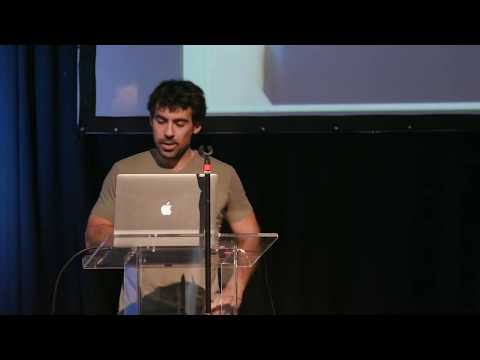
During the Hackaday superconference held during November 2017, Samy Kamkar presented a talk on how he reverse engineers devices, and in particular passive entry and start systems in vehicles. In the talk he also explains what tools he uses which includes SDRs like the HackRF One and RTL-SDR dongle and explains the methodology that he takes when looking at how to reverse engineer any new device. Samy is most famous for writing the Samy MySpace computer worm and also popularizing the "RollJam" wireless car door vulnerability. The talk blurb reads:
In this talk Samy Kamkar shares the exciting details on researching closed systems & creating attack tools to (demonstrate) wirelessly unlocking and starting cars with low-cost tools, home made PCBs, RFID/RF/SDR & more. He describes how to investigate an unknown system, especially when dealing with chips with no public datasheets and undisclosed protocols. Learn how vehicles communicate with keyfobs (LF & UHF), and ultimately how a device would work that can automatically detect the makes/models of keyfobs nearby. Once the keyfobs have been detected, an attacker could choose a vehicle and the device can wirelessly unlock & start the ignition. Like Tinder, but for cars.
Over on his blog "ele y ciencia" has written up two very useful blog posts - one on how to decode AFSK signals from scratch and the other on how to reverse engineer any unknown digital signal. The blog is written entirely in Spanish, but Google translate does a decent enough job at getting the message across (in Chrome right click anywhere on the page and select Translate to English or use the Google translate webpage).
The first post is about decoding an AFSK protocol and explains that you need to record the signal with an RTL-SDR or other SDR, apply a low pass filter to obtain the signal envelope and then apply thresholding with the known baud rate to obtain the demodulated digital signal. The tutorial is high level and just explains the process, but doesn't show how to do it in any software. Later on in the post he goes on to show how he reverse engineered a train-land radiotelephone system and a TCM3105 modem chip which utilizes a FSK system.
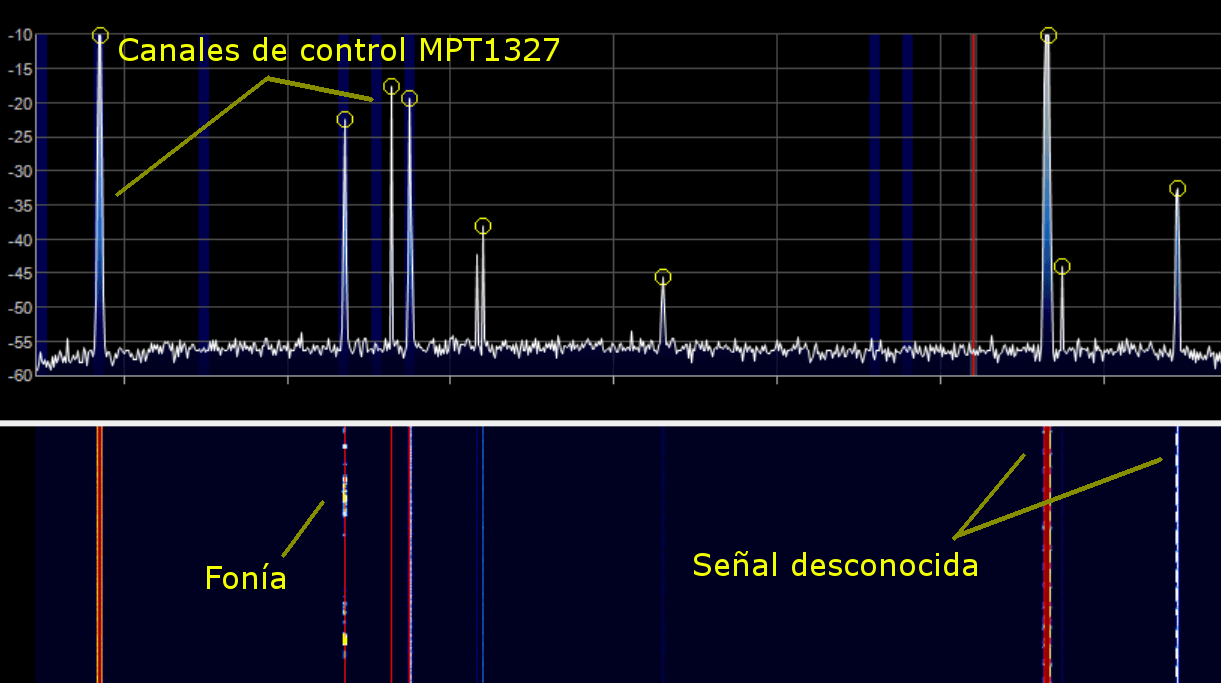
In the second post he shows how to decode any unknown digital signal using just an RTL-SDR and Audacity. He starts off with finding and recording an unknown digital signal with an RTL-SDR and then reverse engineers it in a sort of manual fashion without using any tools like Universal Radio Hacker. The post goes through the full details and steps that he took, and in the end he gets data out of the signal discovering that it is data from a Fleet Management System used in his country for monitoring data such as speed and engine data from commercial vehicles like trucks and buses.
The two posts are very detailed and could be an excellent reference for those interested in reverse engineering some unknown digital signals in your area.
Decoding an Unknown "Fleet Management" signal from scratch.
If you didn't know already Bitcoin is the top cryptocurrency which in 2017 has begun gaining traction with the general public and skyrocketing to a value of over $19,000 US per coin at one point. In addition to providing secure digital transactions, cryptocurrencies like Bitcoin are intended to help fight and avoid censorship. But despite this there is no real protection from the Bitcoin internet protocol being simply blocked and censored by governments with firewalls or by large ISP/telecoms companies.
One idea recently discussed by Nick Szabo and Elaine Ou at the "Scaling Bitcoin 2017" conference held at Stanford University is to use the something similar to WSPR (Weak Signal Propagation Reporting Network) to broadcast the Bitcoin network, thus helping to avoid internet censorship regimes. To test their ideas they set up a HackRF One as a transmitter and RTL-SDR and used GNU Radio to create a test system.