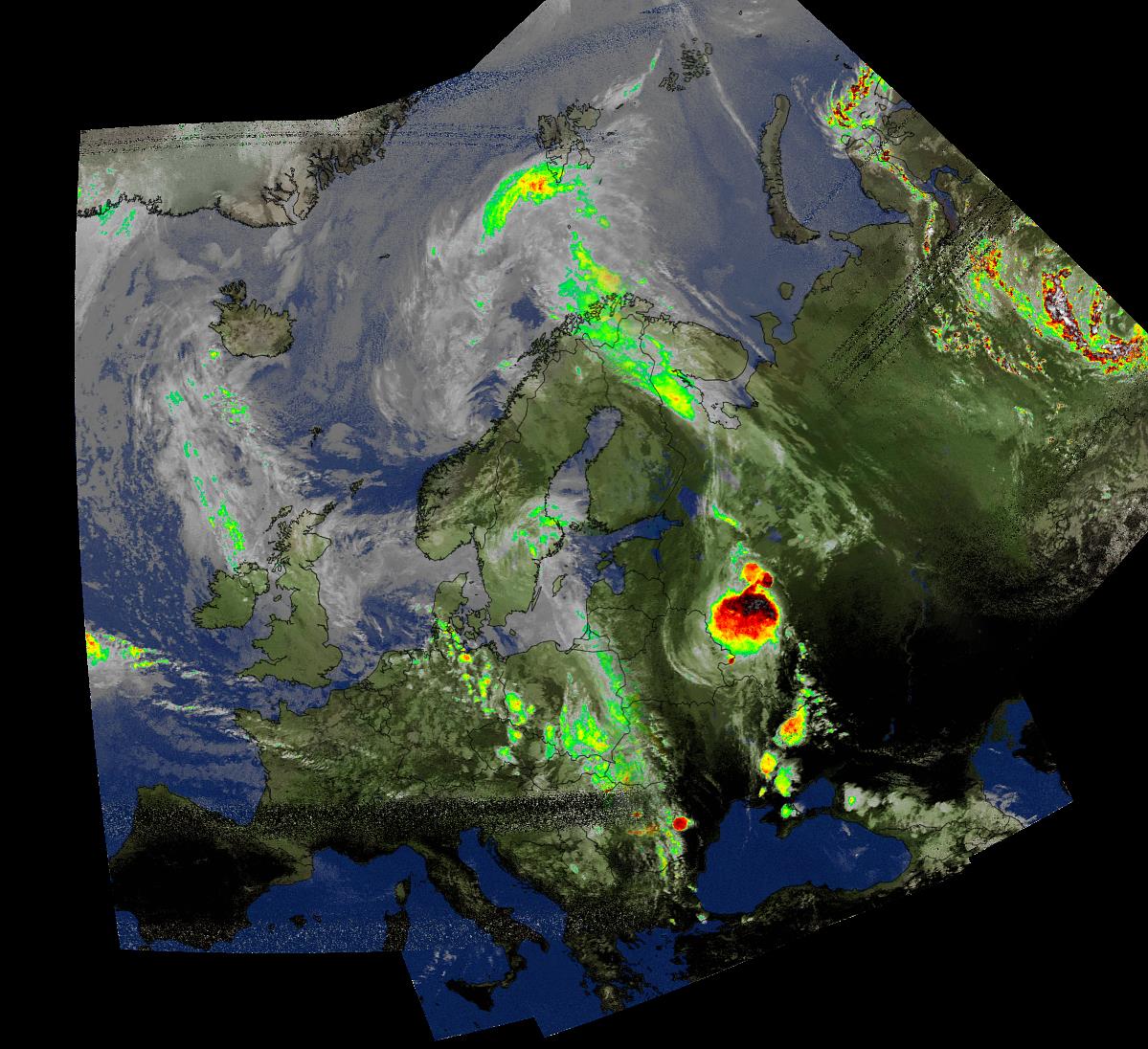
Pete’s tutorial starts from a fresh install of Ubuntu and uses GQRX, GNU Radio Companion, WxtoIMG and the MeteorM2 decoding tools. He shows how to set up the audio piping within Linux, how to run the MeteorM2 LRPT Offline decoder Windows tool in Wine, a Linux Windows emulator and how to use WxtoIMG together with GQRX.
The NOAA and Meteor M2 weather satellites transmit images that they have taken of the earth. With an RTL-SDR and appropriate antenna you can receive these images. On this blog we have Windows tutorials on receiving NOAA and Meteor M2 satellites.
The Windows LRPTOfflineDecoder tool running in Linux with Wine.
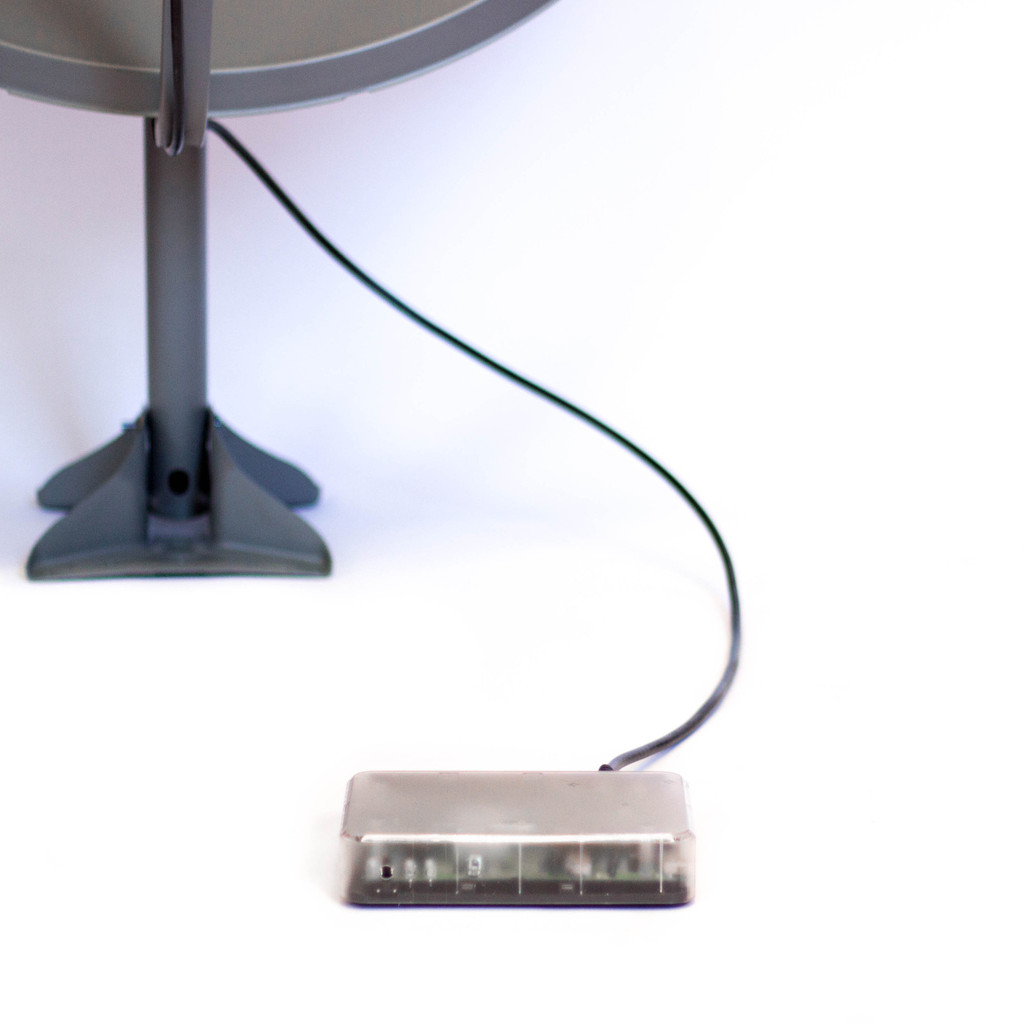
Although this isn’t directly SDR related, this story may still be of interest to some readers. The Outernet project have just put on sale their first receiver which is called the Lighthouse. The standard Lighthouse consists of custom hardware, but there is also a DIY option in the store which consists of a HDStar DVB-S2 receiver board and a Raspberry Pi with custom software. You also need a satellite dish antenna and LNB which can be bought from their store, or found locally.
The Outernet project aims to be a “library in the sky” satellite based service that will provide free one-way access to daily downloads of data such as books, news, videos and other information. Its goal is to provide people who may not have easy physical or uncensored access to the internet an easy way to access daily information.
The currently available Outernet services cover almost the entire globe and use Ku-band (12 – 18 GHz) and C-band (4 – 8 GHz) geostationary satellite links, which is what the Lighthouse is capable of receiving when used with an appropriate dish antenna (the Ku-band service requires a 90cm dish, while the C-band service requires a much larger dish). The Lighthouse receives data from the satellites and then allows users to view the downloaded data by connecting to it via a WiFi enabled device such as a PC or smartphone. They currently broadcast 1 GB of data per day to most of the world, and 100 GB per day to sub-saharan African countries.
In the future Outernet is hoping to release their “Lantern” receiver, of which one prototype is based on a modified RTL-SDR design. The Lantern will receive their upcoming L-band (1-2 GHz) transmissions which will only require a small patch antenna and LNA’s to receive. A standard RTL-SDR with appropriate antenna and LNA’s should also be capable of receiving this service when it is released.
The RTL-SDR software defined radio is often used to receive signals from NOAA APT weather satellites. Once decoded these signals produce a freshly captured image of the earth over your current location. We have a simple tutorial on setting this up here.
However, recently Marco Johansson wrote into RTL-SDR.com to explain an alternative method to the one described in our tutorial. His method uses rtl_fm as the receiver instead of the GUI based software SDR# and uses several other pieces of software to automate the whole process. Marco believes that his method may be useful for some people and his tutorial is presented below. Also, if you are interested Marco has a WxtoImg generated webpage which shows all his recently received images here wxsat.haastaja.net.
A composited weather satellite image made up of several images received from NOAA satellites by Marco Johansson
Note that the following tutorial is written by Marco Johansson.
Marco’s NOAA APT Decoding Tutorial
As a Windows user I had some serious problems using an RTL-Dongle as a receiver for WxtoImg. Signal drops, CPU load, and no receiver control. I had to use 5 different pieces of software to get automatic reception to work and every day one of the programs had some weird problems causing the whole system to stop working. I read several forum posts about similar problems. A huge bit of help came from WxtoImg’s own forum where a user told how he was able to use rtl_fm as a receiver. His system was Linux based, so I was not able to use his scripts, but it gave me enough information to find a Windows based solution.
I stumbled on to a software program that solves my problem totally. It is originally made to control Windows MCE (Media Center), but since it’s release it has been enhanced to work as a universal remote control for the Windows system.
In WxtoImg I selected “Baykal” receiver, port COM1 and 2400baud. The protocol for remote control is very easy to understand and after every command WxtoImg sends CR/LF to receiver, which is mandatory to get commands to work.
Control commands are handled with MCE controller. It listens to COM2 (bridged with COM1) and when it hears a valid command string (A Magic ‘word’) it activates a task. Tasks are .bat files, one for every satellite and a “kill” to stop receiver after the satellite pass.
When satellite is coming (one minute before it is over head) WxtoImg sends a command “MUA” that triggers “kill.bat”. Then WxtoImg sends a command “RF0xxxxxxx” where xxxxxxx is the frequency of the satellite, “1371000” for NOAA19 – this triggers “rec-noaa19.bat”. When the pass is over, Wxtoimg sends again “MUA” to kill the receiver program.
Now I can control recordings directly from WxtoImg without any other software (Orbitron, SDR#, DDE client etc).
.bat files and other configurations are provided below for others to use. I ended up to have separate .bat to start the tasks as in that way I can set the system start and stop recording in the background without a command prompt popping around my desktop every 90 mins 🙂
My system is Windows 8.1, I have not tested this in 7, 8 or 10 but I believe it should work without any modification. The HW ID of the RTL-Dongle I use for wx_rtl_fm.exe is “3” (‘-d 3’ in script). If you have only one RTL-Dongle, then this should be set to “0”. I use the bandwidth of 55 kHz that seems to be enough for good APT reception including doppler error as in this method the doppler error is not corrected in the receiver at all (no AFC).
NOTE! I have copied the original ‘rtl_fm.exe’ to ‘wx_rtl_fm.exe’ to be able to start other rtl_fm.exe instances without the risk that WxtoImg kills my other receiver accidentaly. And of course, remember that these are from my system and the correct path used in scripts will be different for you 🙂 Also, the original ‘sox.exe’ is copied to ‘play.exe’ as instructed in the SoX’s manual for Windows user. And because I’m lazy, I copied rtl_fm and SoX binaries to same directory so that I do not have to put so long path strings into my .bat scripts 🙂
Final words:
.bat’s used in this are very dirty hacks and there are lot’s of improvement available for sure – but it works! Also, the remote protocol for Baykal receiver actually sends two more commands, one is used for telling the modulation of the transmission (RM NFM) and second to do something I do not know (MUF).
The whole communication in my system goes like this:
1) “MUA” => Kill all wx_rtl_fm.exe processes currently running (if any). This happens one minute before satellite pass starts.
2) “RF0xxxxxxx” => Start wx_rtl_fm & SoX, xxxxxxx=frequency of the satellite and is used to select correct .bat for different satellites (see MCE Control XML-file for details). This happes when satellite pass starts.
3) “RM NFM” => Not used in my system. Could trigger something fun if needed :). This happens right after ‘RF0xxxxxxx’ command.
4) “MUF” => Not used in my system. Could trigger something fun if needed :). This happens right after ‘RM NFM’ command.
5) “MUA” => Kill all wx_rtl_fm.exe processes currently running. This happes right after satellite pass.
SoX is a very powerfull tool for audio manipulation. There are options that could greatly improve the audio quality of the received signal – denoice, better dynamics etc. I am not that keen to try everything SoX could do as the results are already very good in my system, but if there are someone who knows better ways to handle SoX then please do not hesitate to comment!
Used .bat Files
“Kill the receiver”:
kill.bat is triggered by MCE control and calls kill-wx_rtl_fm.bat to do the actual killing.
kill.bat
cd C:\Users\Mac Radio\ownCloud\SDR\rtl_fm_sox
start /min kill-wx_rtl_fm.bat ^& exit
This triggers;
kill-wx_rtl_fm.bat
taskkill /IM wx_rtl_fm.exe /F
“Start recording”:
Recording is started after MCE Control gets the correct ‘word’ from WxtoImg. For every satellite there are separate ‘words’ and separate .bat files.
rec-noaa15.bat
cd C:\Users\Mac Radio\ownCloud\SDR\rtl_fm_sox
start /min noaa15.bat ^& exit
This triggers;
noaa15.bat
cd C:\Users\Mac Radio\ownCloud\SDR\rtl_fm_sox
play -r 55k -t raw -e s -b 16 -c 1 "|wx_rtl_fm -d 3 -M fm -f 137.62M -s 55k -l 0" -t waveaudio
rec-noaa18.bat
cd C:\Users\Mac Radio\ownCloud\SDR\rtl_fm_sox
start /min noaa18.bat ^& exit
This triggers;
noaa18.bat
cd C:\Users\Mac Radio\ownCloud\SDR\rtl_fm_sox
play -r 55k -t raw -e s -b 16 -c 1 "|wx_rtl_fm -d 3 -M fm -f 137.9125M -s 55k -l 0" -t waveaudio
rec-noaa19.bat
cd C:\Users\Mac Radio\ownCloud\SDR\rtl_fm_sox
start /min noaa19.bat ^& exit
This triggers;
noaa19.bat
cd C:\Users\Mac Radio\ownCloud\SDR\rtl_fm_sox
play -r 55k -t raw -e s -b 16 -c 1 "|wx_rtl_fm -d 3 -M fm -f 137.1M -s 55k -l 0" -t waveaudio
And finally, the MCE Control magic ‘words’. By default, MCE Control understands over 200 separate commands originally meant to remote control Windows MCE (Media Center). Fortunately, one can create their own commands and get MCE Control to do much more – control Wx-system!
MCE Control uses an XML configuration file for these extra commands. The file is located in the same directory where the main executable is located. My system uses following XML file to be able to control ‘wx_rtl_fm.exe’:
<?xml version="1.0" encoding="utf-8"?>
<MCEController xmlns:xsd="http://www.w3.org/2001/XMLSchema" xmlns:xsi="http://www.w3.org/2001/XMLSchema-instance">
<Commands xmlns="http://www.kindel.com/products/mcecontroller">
<!-- Place command definitions here -->
<!--
==================================================================
StartProcess Commands
File: The full path to the executable you want to start.
==================================================================
-->
<StartProcess Cmd="RF01376200" File="C:\Users\Mac Radio\ownCloud\SDR\rtl_fm_sox\rec-noaa15.bat"/>
<StartProcess Cmd="RF01379125" File="C:\Users\Mac Radio\ownCloud\SDR\rtl_fm_sox\rec-noaa18.bat"/>
<StartProcess Cmd="RF01371000" File="C:\Users\Mac Radio\ownCloud\SDR\rtl_fm_sox\rec-noaa19.bat"/>
<StartProcess Cmd="MUA" File="C:\Users\Mac Radio\ownCloud\SDR\rtl_fm_sox\kill.bat"/>
</Commands>
</MCEController>
The SatNOGS project aims to provide low cost satellite ground stations (where one critical component is currently an RTL-SDR dongle) along with free networking software in order to create a crowd sourced satellite coverage network. The SatNOGS project was also the grand prize winner of the 2014 Hackaday prize which saw them take away almost $200k US dollars of prize money.
Recently the SatNOGS team announced the release of their new satellite database which can be used to look up satellite transmitter information such as downlink frequencies. It is described as “an effort to create an hollistic, unified, global transmitter database for all satellite transmitters”. The database is open to everyone and requires contributions in order to grow.
To commemorate the 40th Anniversary of the Apollo-Soyuz mission the International Space Station (ISS) is set to transmit 12 Slow Scan TV (SSTV) images this weekend. The images are set to transmit Saturday morning, July 18 10:30 UTC and will run through until Sunday, July 19 21:20 UTC, but they note that the dates are tentative and could be subject to change. The images will be transmitted at 145.80 MHz and will probably be sent in the PD180 SSTV mode with 3 minute breaks between each transmission.
SSTV is a type of radio protocol that is used to transmit low resolution images over radio. An RTL-SDR with appropriate antenna can be used to receive these images from the ISS. The signal is usually quite strong, so even a simple whip or long wire antenna may receive these images if placed in a good unobstructed view of the sky.
As with the last ISS SSTV event we suggest that to decode the images you use SDR# and pipe the audio into MMSSTV, a freeware SSTV decoding software program. We also suggest using the settings recommended by “happysat”, which are enabling “Auto slant” and “Auto resync” under Options->Setup MMSTV->RX.
To know when the ISS is overhead you can track it online using heavens-above.com or isstracker.com. If using heavens-above to predict pass times remember to set it to show all passes, not just the visible ones. Received SSTV images can be submitted to the ARISS Gallery.
40 years ago this week, the historic joint Apollo-Soyuz mission was conducted. Apollo-Soyuz (or Soyuz-Apollo in Russia) represented the first joint USA-Soviet mission and set the stage for follow-on Russia-USA space collaboration on the Space Shuttle, Mir Space Station and the International Space Station. The Soyuz and Apollo vehicles were docked from July 17-19, 1975, during which time joint experiments and activities were accomplished with the 3 USA astronauts and 2 Soviet cosmonauts on-board. Apollo-Soyuz was the final mission of the Apollo program and the last USA human spaceflight mission until the first space shuttle mission in 1981.
To commemorate the 40th anniversary of this historic international event, the ARISS team has developed a series of 12 Slow Scan Television (SSTV) images that will be sent down for reception by schools, educational organizations and ham radio operators, worldwide.The SSTV images are planned to start sometime Saturday morning, July 18 and run through Sunday, July 19. These dates are tentative and are subject to change. The SSTV images can be received on 145.80 MHz and displayed using several different SSTV computer programs that are available on the Internet.
Also, as a special treat, on Saturday July 18 the ISS cosmonauts will take time out to conduct an ARISS contact with students attending the Moon Day/Frontiers of Flight Museum event in Dallas Texas. This Russian cosmonaut-USA student contact is planned to start around 16:55 UTC through the W6SRJ ground station located in Santa Rosa, California. ARISS will use the 145.80 MHz voice frequency downlink (same as the SSTV downlink) for the Moon Day contact. More details about these contacts are provided at Upcoming Contacts.
The ARISS international team would like to thank our ARISS-Russia colleague, Sergey Samburov, RV3DR, for his leadership on this historic commemoration.
An example SSTV image from the last ISS SSTV event which was to commemorate first man to space Yuri Gagarin’s would be 80th birthday.
The Outernet project aims to be a “library in the sky” satellite based service that will provide free access to daily downloads of data such as books, news, videos and other information. It’s goal is to provide people who may not have easy physical or uncensored access to the internet an easy way to access daily information.
Outernet Overview Poster
To achieve this goal the Outernet project needs a good low cost satellite receiver. The RTL-SDR is a good candidate, but it’s performance at about 1.5 GHz isn’t great, and this appears to be the frequency Outernet wants to use. To improve the performance for satellite reception at these frequencies they have redesigned the RTL-SDR by replacing the R820T2 tuner with a MAX2120 tuner chip which tunes from 925 MHz to 2175 MHz. They have also improved the components used and the PCB layout. The regular RTL2832U chip is used as the ADC and USB interface, so the maximum bandwidth and ADC bit depth remain the same.
The Lantern is currently being prototyped and there is a discussion about it on Reddit. They are aiming for a price point below $20, but note that it will take time to get to that low price as mass production will be required.
The LightSail is a solar sailing spacecraft that has been launched by the planetary society. It is based on the “solar sail” concept, which uses a large reflective foil to harness the suns energy as a means of propulsion. The planetary society write about solar sails:
Solar sails use the sun’s energy as a method of propulsion—flight by light. Light is made of packets of energy called photons. While photons have no mass, a photon traveling as a packet of light has energy and momentum.
Solar sail spacecraft capture light momentum with large, lightweight mirrored surfaces—sails. As light reflects off a sail, most of its momentum is transferred, pushing on the sail. The resulting acceleration is small, but continuous. Unlike chemical rockets that provide short bursts of thrust, solar sails thrust continuously and can reach higher speeds over time.
The LightSail Concept
Currently a test mission of the LightSail concept is under way. The LightSail is in orbit and expected stay in orbit for about 1-2 months. Initially the mission had trouble with communications, but after an automatic reboot of the on board computers they have now confirmed that the LightSail is transmitting properly.
With an RTL-SDR and appropriate satellite antenna, it should be possible to monitor the LightSail. The LightSail transmits at a frequency of 437.435 MHz with the AX.25 protocol, FSK encoding at 9600bps and with a call sign of KK6HIT. The LightSail can be tracked at http://sail.planetary.org/missioncontrol and the planetary society are also requesting that amateur radio tracking enthusiasts email over any data they capture. Over on twitter some users have confirmed LightSail downlink hits:
Over on YouTube user max30max31 (a.k.a IZ5RZR) has uploaded a video showing some of the steps in the tutorial as well as the real time result of decoding of the weather satellite image.