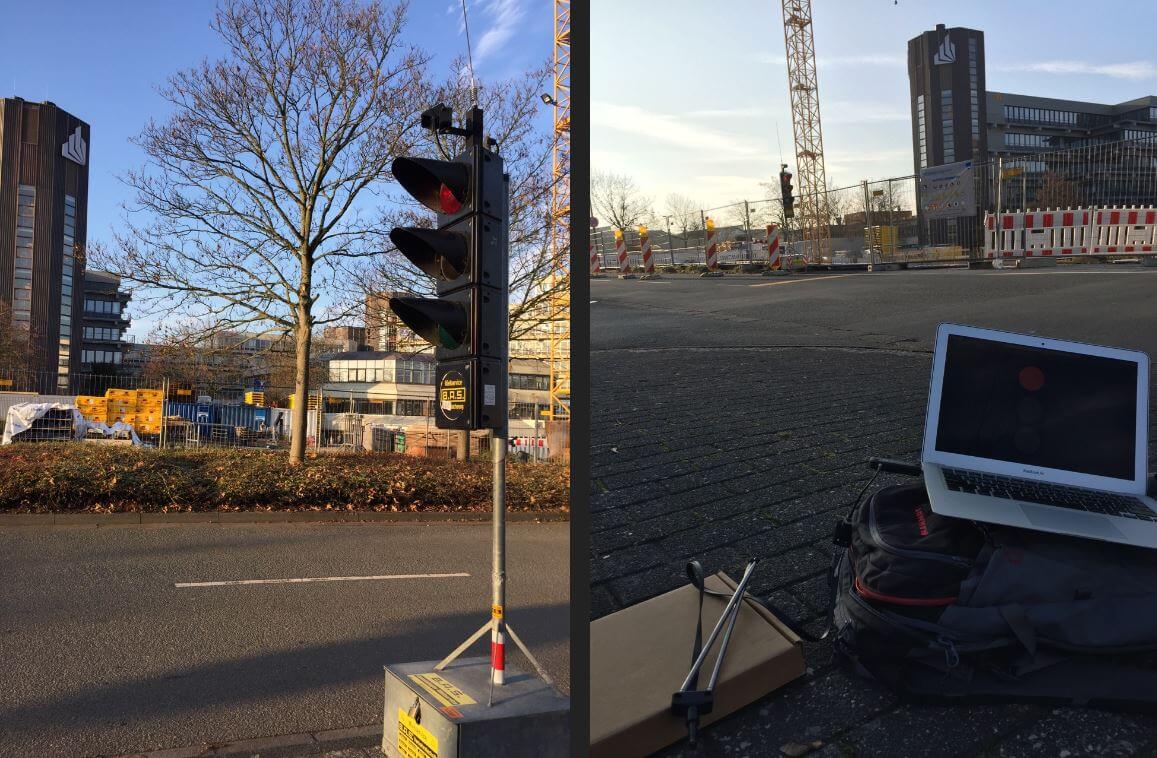
Back in September 2015 we made a post about how Bastian Bloessl was able to use his RTL-SDR dongle to reverse engineer and decode the signals coming from portable wirelessly synchronized traffic lights which are commonly set up around road construction zones.
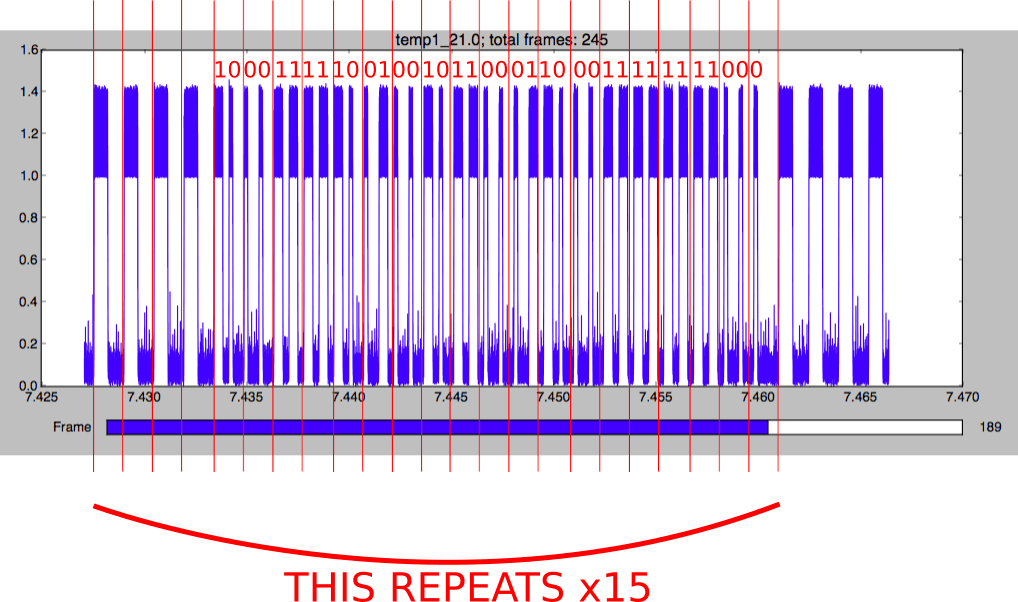
To reverse engineer these new lights he made a recording of the signals in GQRX and then opened them up in Inspectrum, which is a very nice tool for helping to reverse engineer digital signals. Thanks to Inspectrum he was easily able to extract the preamble and decode the data in GNU Radio.
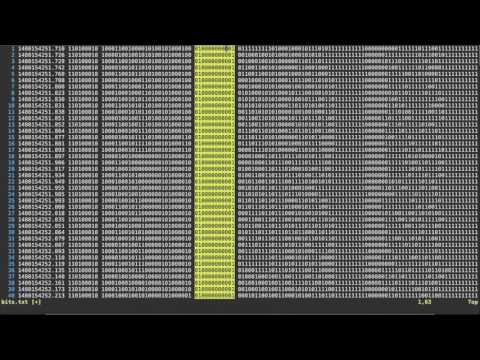
Bastian has also uploaded a video that shows him reverse engineering the binary frame format in the Vim text editor which may be useful for those wishing to understand how it’s done.
Reversing Frame Format with Vim
Once the frame format was reverse engineered, he was able to use the program he created last year which allows him to view the status of the lights remotely in real time.
Recently the FlightAware Prostick Plus was released. The Prostick is a modified RTL-SDR with a LNA built into the dongle. It is optimized for ADS-B reception and works very well due to the low noise figure of the SKY7150 LNA which is used as the first stage LNA. However, due to the increased gain from the LNA it can easily overload from strong out of band signals, such as broadcast FM, DAB, DVB-T and GSM. To eliminate this problem FlightAware recommend using their 1090 MHz filter in front of the dongle.
The FlightAware Prostick Plus is the same as the Prostick, but the Plus also incorporates a 1090 MHz SAW filter into the dongle itself. The overall cost is about $15.95 USD cheaper than buying the Prostick + Filter combination. See below for a tabulated comparison between the two units.
Type: LC Passband: 980 – 1150 MHz Insertion Loss: 1.65 dB Attenuation: 40 – 50 dB
Type: SAW Passband: 1,075 MHz – 1,105 MHz Insertion loss: 2.3 dB Attenuation: 30 dB
TCXO
Old batches NO. New batches YES.
YES
Current Draw
330 mA
300 mA
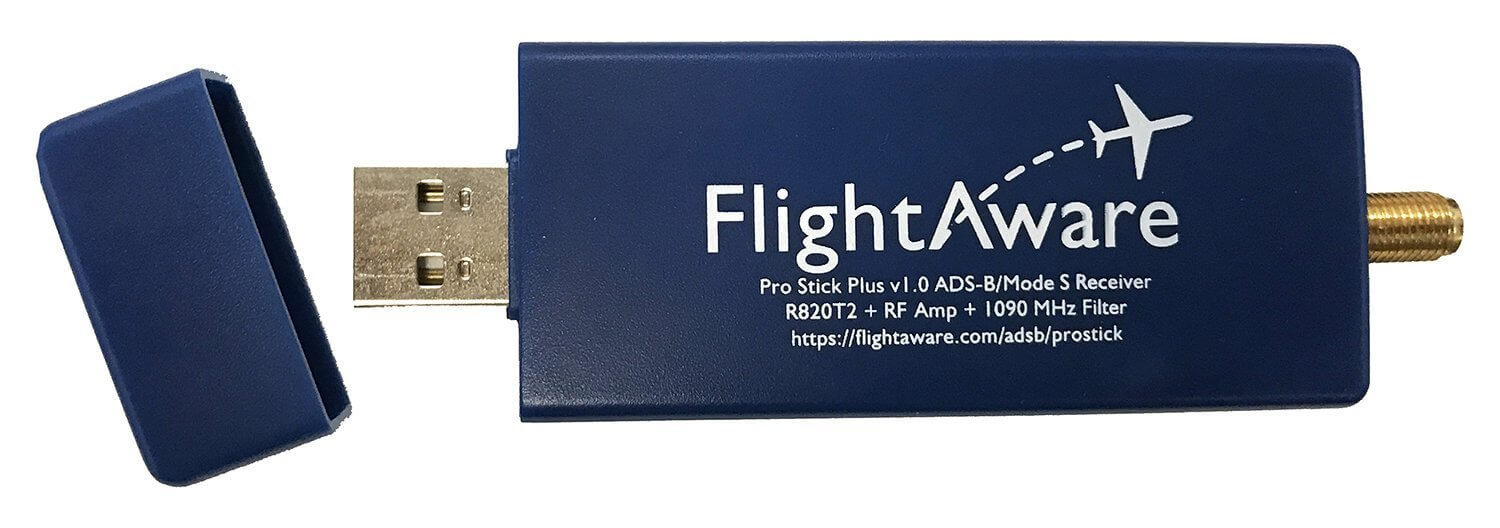
The new Pro Stick Plus RTL-SDR based ADS-B Receiver from FlightAware.
The first thing we notice is that the filter arrangement between the two units is reversed. On the Prostick the filter is external and must be placed before the LNA. This has the advantage of excellent rejection of out of band signals, but increases the noise figure (NF) of the system slightly. A higher noise figure means the ADS-B signal will end up being weaker, resulting in less range and reports. However, the FlightAware 1090 MHz filter has low insertion losses and should only increase the NF by 1-2 dB.
The Prostick Plus on the other hand uses a SAW filter positioned after the LNA. SAW filters at 1090 MHz typically have an insertion loss of anywhere between 2-3 dB’s. But since it is placed after the LNA the losses are almost completely eliminated by the gain from the LNA and thus the total NF remains low. The attenuation of the SAW filter is less, but it has a smaller pass band. The small pass band may be useful for people who live near an airport and suffer issues with interference from the 1030 MHz interrogation pulses or from GSM at 950 MHz.
In theory, the Prostick + Filter should operate better in environments with very strong out of band signals (any signal outside of 1090 MHz). And the Prostick Plus should operate better in environments with weaker out of band signals. The theory is that since the LNA is placed first in the signal chain on the Prostick Plus, it is more susceptible to overloading from the strong signals as it has no protection from a filter. The LNA used in both Prosticks is a SKY7150, which has a very high OIP3 rating. High OIP3 means that its performance in the presence of strong signals is excellent, and it will not overload so easily. However, even a very high OIP3 rated LNA cannot withstand the strong broadcast signals in some locations.
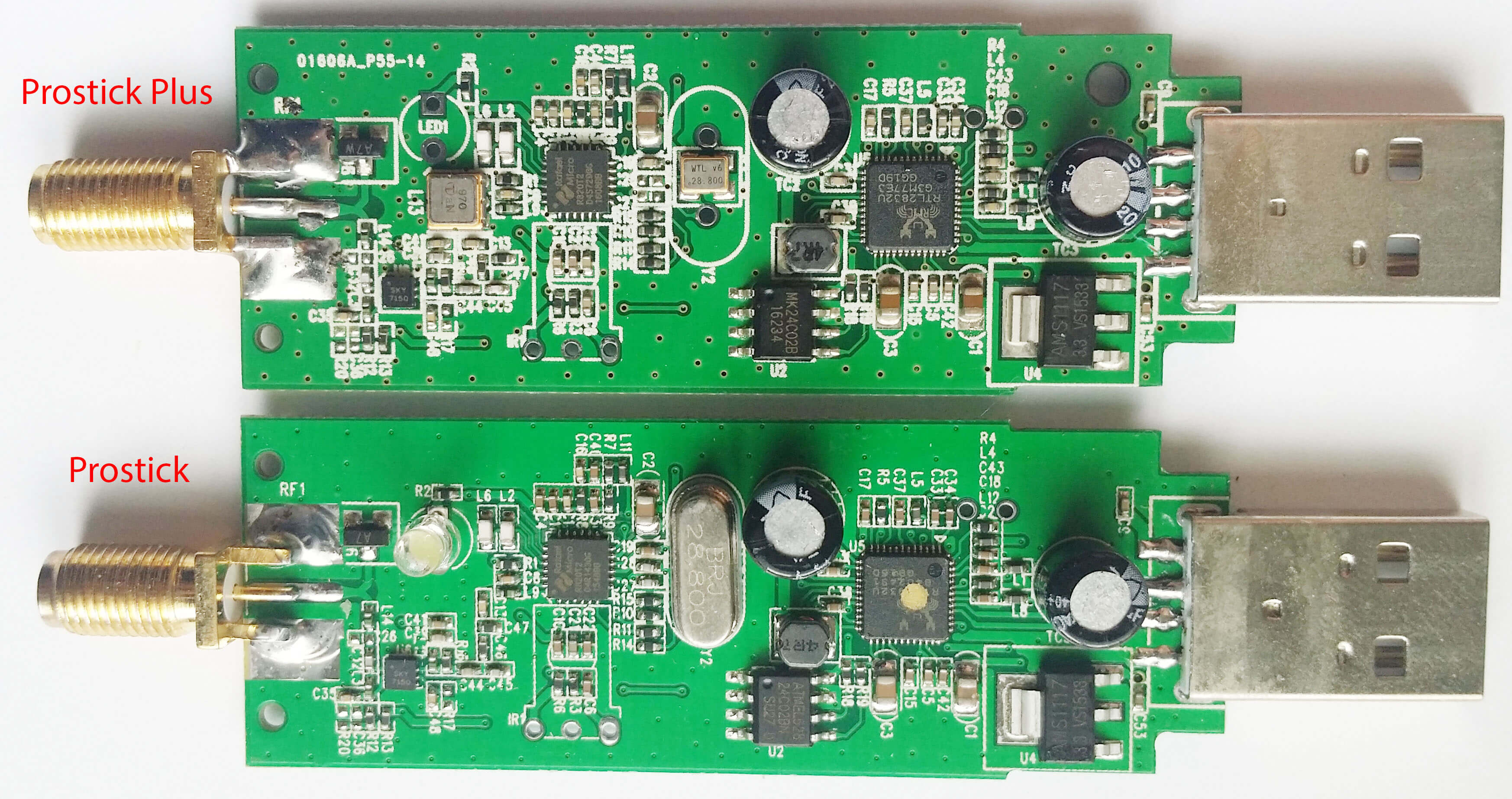
The Prostick Plus also has some other enhancements like a TCXO. ADS-B is very tolerant to frequency drift, so a TCXO won’t really improve decoding performance, but the cost of a 28.8 MHz TCXO purchased in bulk is under $1 USD, so they may have decided to add it anyway. They appear to also be using TCXO’s on the new production batches of the Prostick as well. The Plus also only draws 300 mA of current compared to the Prostick which draws 330mA. This may be due to the removal of the LED (Although the new batches of the Prostick might also have the LED removed as they advertise a power draw of 300 mA.) On the image of the PCBs below you can see the difference. The SAW filter is just underneath where the LED used to be.
Again, as we mentioned in our previous review of the Prostick it is a bit odd that the 39 dB OIP3 SKY7150 only appears to be drawing 60 mA, when it should be drawing 100 mA. The lower current usage is probably because they run it from 3.3V instead of 5V. The lower current use probably means that the OIP3 rating is reduced slightly by ~5 dBs.
The Prostick Plus and Prostick PCBs
Real World Testing
Here we test the Prostick and Prostick Plus in a signal environment with lots of strong interfering BCFM, DVB-T and GSM signals around. We’ve seen reports on the FlightAware forums that some users have seen improved performance with the Prostick Plus, whilst others have seen dismal or reduced performance. In these tests and review we are able to show when each stick will perform at its best. We do not test the Prostick without the filter, as without the filter we are unable to receive any ADS-B messages at all due to overloading.
Test 1: Flight Aware ADS-B Antenna
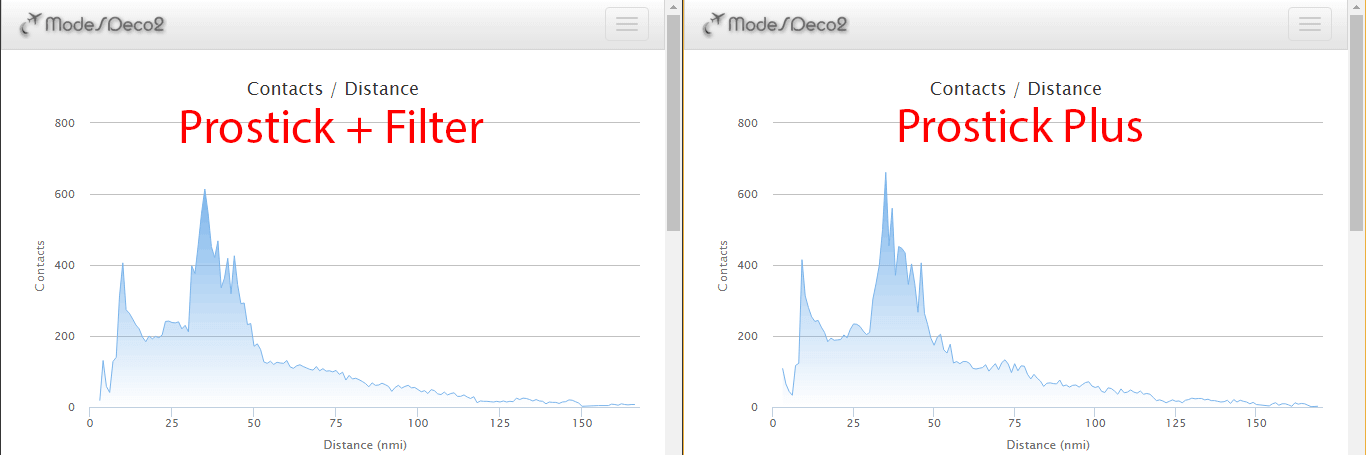
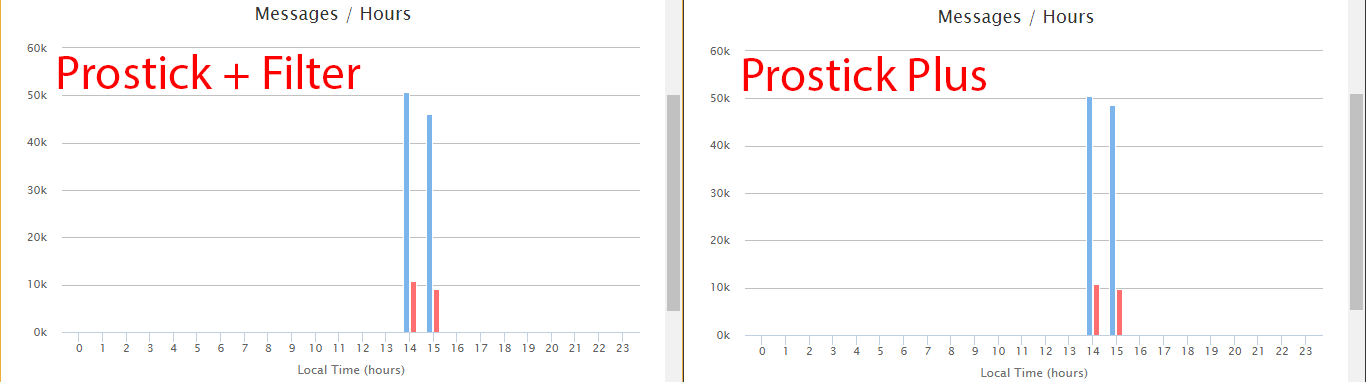
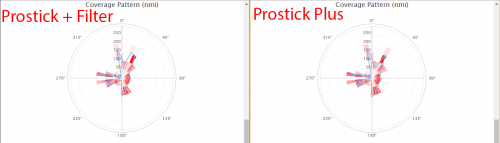
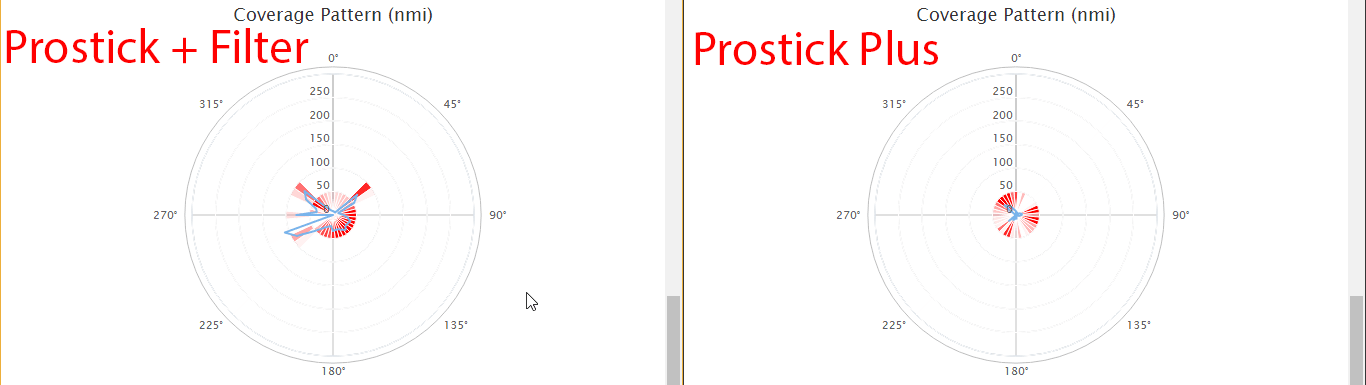
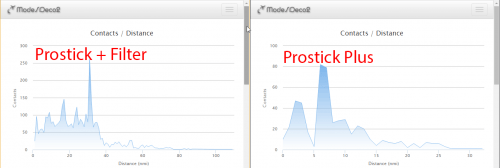
First we set up a test using the FlightAware ADS-B antenna, a 2-way signal splitter and the Prostick Plus and Prostick + Filter. We used Modesdeco2 as the ADS-B software, and ran the test for 45 minutes.
The results show that the Prostick Plus edges ahead of the Prostick + Filter by a small amount. It seems that the 1-2 dB loss in the external filter does not contribute to a huge reduction in ADS-B messaging, but the results do show that the Prostick Plus will give you better results in an environment with favorable reception conditions.
In this test we used the excellent FlightAware ADS-B antenna. This antenna is tuned specifically to 1090 MHz, and performs some rejection of the out of band signals. This rejection is enough to allow the Prostick Plus to work well in our test area without overloading.
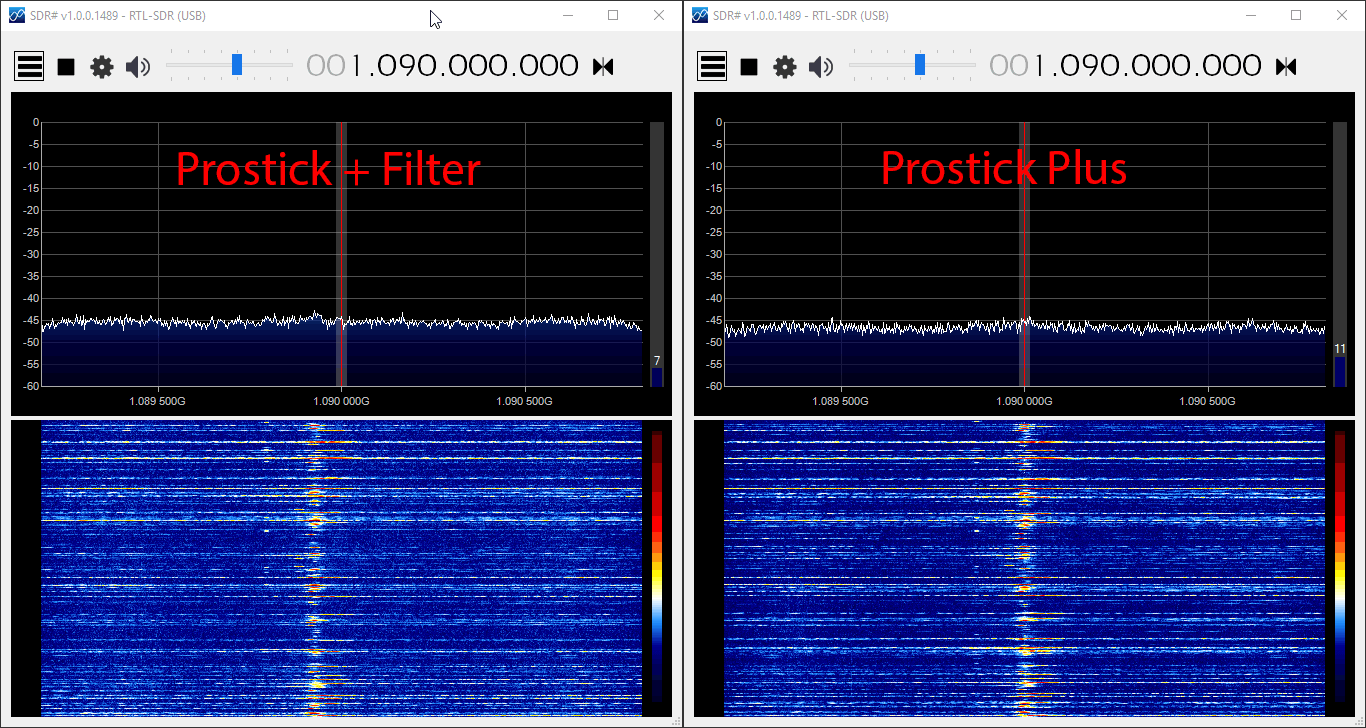
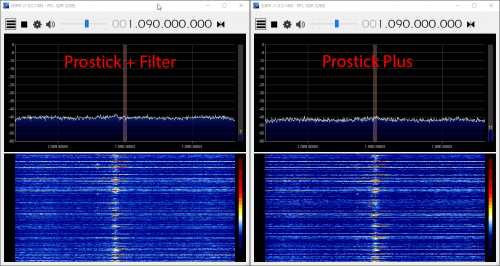
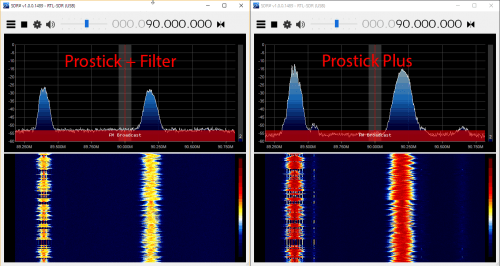
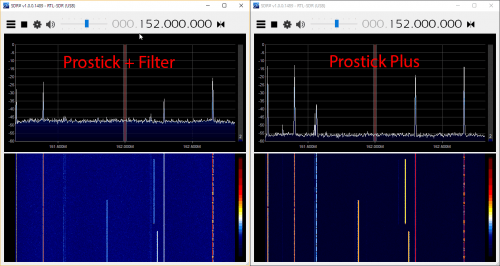
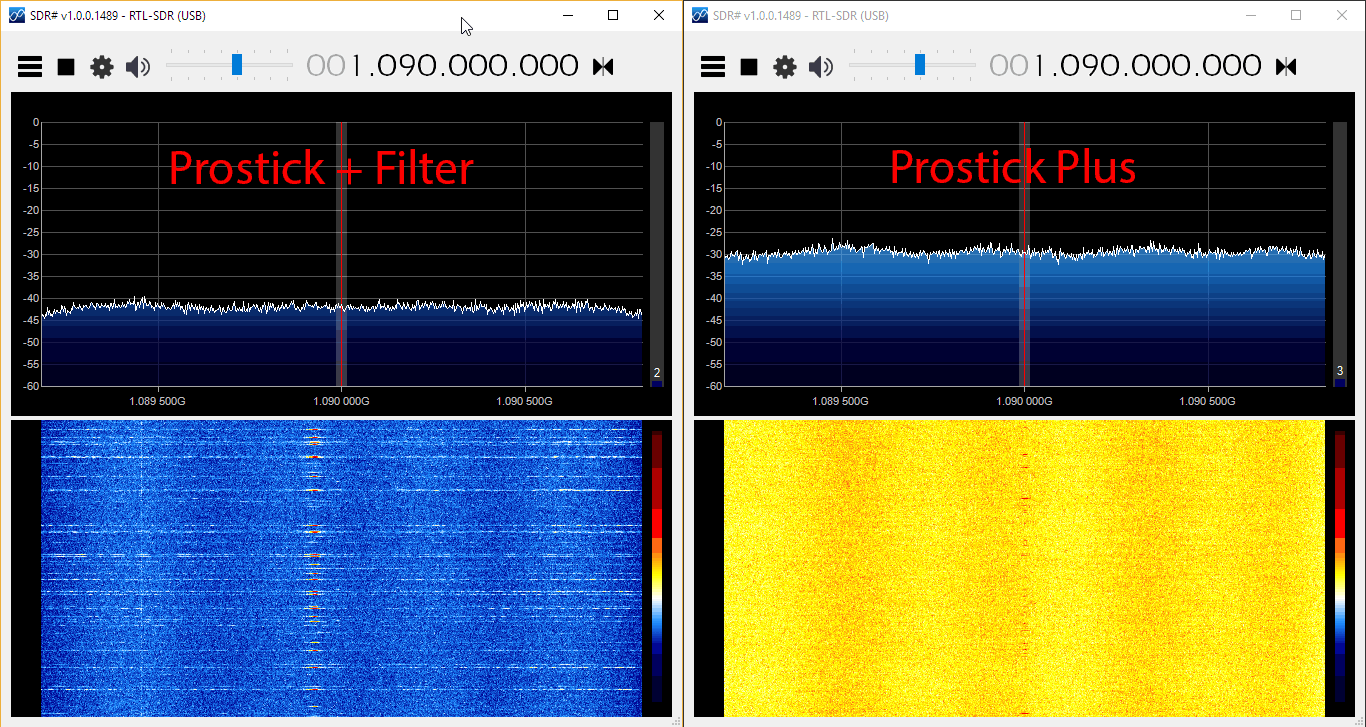
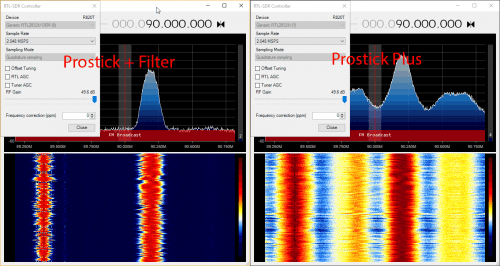
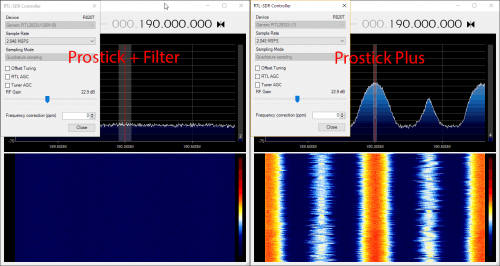
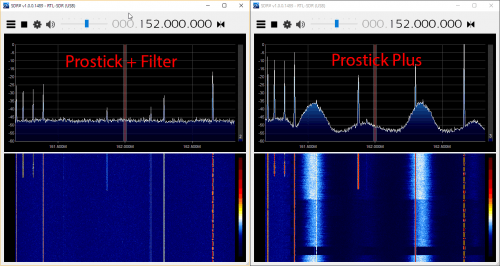
In the image slider below we first checked ADS-B reception in SDR#, to see if there was any noticeable visual difference. The reception seemed identical. In the remaining images we checked to see how the reception was on out of band signals with the two units. In these tests we want the out of band signals to be low, so smaller signals are better. The Prostick Plus filters our out band signals significantly less, which can be a reason for increased overload. But the amount of filtering performed by the Plus was sufficient together with this 1090 MHz tuned antenna to not cause any overload at max gain.
Test 2: Discone Antenna
In test 2 we show what can happen if the out of band signals going into the Prosticks are really strong. This could especially happen if you are using a wideband antenna that is not specifically tuned to 1090 MHz, or if the out of band signals in your area are exceptionally strong (living near a transmission tower for example). In this test we used the same setup as in test 1, but used a wideband discone as the antenna instead. This means that the natural out of band signal filtering from the FlightAware antenna is not present anymore, and thus out of band signals come into the dongle much stronger.
Here we found that the Prostick Plus produced dismal results. The out of band signals were too strong for the LNA to handle, thus causing overload and significant desensitization of the ADS-B signals. The messages received by the Prostick + Filter was significantly higher.
In the SDR# screenshots below we can clearly see that the Prostick Plus has very poor ADS-B reception at 1090 MHz with this antenna. The noise floor is much higher due to desensitization and overload from broadcast FM and DVB-T signals. Reducing the gain on the RTL-SDR does not help a lot, since most of the overload occurs in the first stage SKY7150 LNA. This can also be seen in the amount of signal overload that is present when tuned to the broadcast FM and other bands in SDR#.
Conclusions
The Prostick and Prostick Plus dongles are both excellent low cost ADS-B receivers. If you want to set up a permanent ADS-B monitoring station they are highly recommended.
So what are the lessons learned from these tests?
If you live in an environment with extremely strong out of band signals you’ll need to place the filter first. So in this case use the Prostick + external filter combination (or Prostick Plus + external Filter).
Otherwise use the Prostick Plus for slightly better performance and lower cost.
To reduce the possibility of overload with the Prostick Plus use an antenna tuned to 1090 MHz.
The table below summarizes the recommendations again.
Antenna -> LNA -> Filter (Prostick Plus)
Antenna -> Filter -> LNA (Prostick + FA Filter)
Advantages
Noise figure (NF) is dominated by the LNA, thus this method gives minimum NF.
Losses in filter overcome by LNA gain.
LNA will not be susceptible to overloading from out of band signals.
Disadvantages
The LNA can overload from out of band signals since it is not protected by a filter.
The insertion loss (IL) of the filter directly adds to the noise figure (NF). For example a 2 dB IL filter will add 2 dB to the system NF. This may result in a few dB’s lower SNR.
When to use
Use this method if you do not have strong out of band signals in your area and/or if you have an LNA with a high OIP3 rating, like with the SKY7150 LNA which is used on the Prostick’s.
Use this method if you have very strong out of band signals in your area.
For most people the Prostick Plus should work fine and be the better choice. Also rest assured that if you purchase a Prostick Plus and find that it overloads in your environment, you still always have the option of placing an external filter in front of it. Then you’ll practically have the same performance as with the standard Prostick + Filter combination. A Prostick Plus + External Filter combination may even be more beneficial for users in very very strong signal environments.
Also remember that the Prostick’s are designed to be placed as close to the antenna as possible, without the use of coax cable. You can use USB extension cables, or run the Prostick on a remote Raspberry Pi computing unit to achieve this. If you want to run coax between the antenna and Prostick, you will see heavily reduced performance due to the losses in the coax cable. In this situation you should instead place an LNA like the LNA4ALL or Uputronics ADS-B LNA by the antenna, and use a bias tee to power it.
First he explains how he used Python to extract the data from the RTL-SDR I/Q samples. From those samples he calculates the amplitude data, and plots it on a graph which shows the digital signal. He then decimates the signal to reduce the number of samples and figures out how to detect the preamble, data bits and packet repetitions. Then to decode the signal he explains how he does clock recovery, convolution and thresholding, and also the importance and meaning of those steps.
If you’re new to reverse engineering signals and don’t have a DSP background, then spenmcgee’s write up is an excellent starting point. It’s written in a way that even a layman should be able to understand with a little effort. If you have a Lacross TX29 wireless temperature meter that you just want to decode, then his code will also be of use.
Outernet is a relatively new satellite based file delivery service which can be received with an RTL-SDR dongle. They continuously send out useful data like weather reports, news, APRS data as well as files like Wikipeda pages, images, videos and books. Previously we posted a tutorial that shows how to set up an Outernet receiver here.
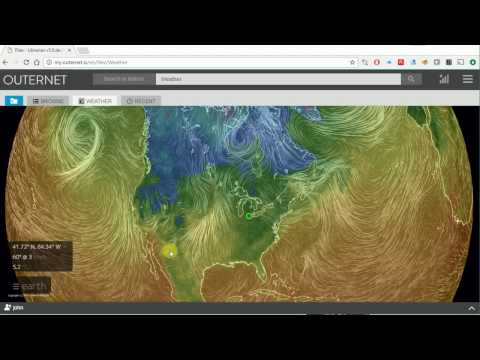
If you instead prefer video tutorials, then two YouTube channels have uploaded Outernet set up tutorials. The first tutorial is by MKme Lab. In this video they set up Outernet using a Raspberry Pi and a Lipo battery for portable operation. Once setup he shows the Outernet browser and weather app in action.
The second video is by John’s DIY Playground and is similar, but goes a bit deeper into setting up the software on the Raspberry Pi and shows how to point the patch antenna towards the satellite.
Patchvonbraun (aka Marcus Leech) is one of the pioneers in using low cost SDR dongles for amateur radio astronomy experiments. In the past he’s shown us how to receive things like the hydrogen line, detect meteors and observe solar transits using an RTL-SDR. He’s also given a good overview and introduction to amateur radio astronomy in this slide show.
Currently CCERA is looking for donations over at gofundme, and they are hoping to eventually raise $25k. They write:
About CCERA:
Radio astronomy is one of the most important ways to observe the cosmos. It is how we learned about the existence of the afterglow of the big bang (the cosmic microwave background), it is how we observe huge swaths of the universe that are otherwise obscured by dust. Most of what’s going on out there can’t be seen with visible light.
Astronomy has traditionally been one of the areas in science where dedicated non-professionals have continued to make an enormous contribution to the field. Optical astronomy requires little more than a telescope and knowledge.
Radio astronomy has, up until recently, required a lot more skill and resources. However, technology has advanced enough that small groups could be making serious contributions to radio astronomy. With the right sorts of software and information, many dedicated non-professionals could be doing good work in the area, and CCERA intends to help make that a reality.
CCERA will be producing open source software and hardware designs to help non-professional and professional radio astronomers alike, documenting them, and helping people get up to speed so that they can use these powerful tools themselves. Our GitHub repository is: https://github.com/ccera-astro
CCERA will also be operating its own radio astronomy facilities, initially in Ontario, Canada. These will serve as a test-bed for our own designs, as a place for us to train interested people in the operation of low cost radio astronomy equipment, and will also be used for real radio astronomy work. All our data will be publically-available.
About us:
Roughly 10 years ago, I and a number of others started a project to restore a large, historic, satellite earth station antenna at Shirleys Bay in Ottawa. Our goal was to bring the dish back on-line for use in amateur radio astronomy, research, and importantly, educational outreach about science, and radio astronomy.
The project came to a sudden end back in 2013/14 when the owner of the dish (The Canadian Space Agency) needed to dismantle it to make way for other occupants of the site.
However, during that period, we became fascinated with the possibilities that opening up radio astronomy to skilled non-professionals could bring.
Since then, our group has been working on another far lower cost project to build our own a specialized radio telescope somewhere in the Rideau Valley area. Many of our group live in the area, and Marcus lives in Smiths Falls. With good attention to the usability of our designs and open publication of our tools under appropriate open source licenses, our work should be replicable by others. We thus hope to kick off a new era in non-professional radio astronomy.
What we need the money for:
We’ve secured a small office in the Gallipeau Center outside of Smiths Falls, and will be able to erect our specialized antenna arrays over the coming year.
While we have a lot of the equipment we’ll need, we’ll have more equipment to buy, and on-going expenses to cover, including rent, insurance, miscellaneous mechanical construction materials (lumber, metal, etc). We also need to cover expenses relating to incorporation as a not-for-profit.
Our goal is to provide a test facility for small-scale radio astronomy research, and to develop techniques that allow small organizations and educational institutions to run their own small-scale radio astronomy observing programs.
If we are successful, in addition to making our designs and software available under open source licenses, we’ll be holding regular public lectures, host training seminars, host school groups, etc. We will also produce videos of our work for those who cannot visit us directly in Ottawa. We want to make some of the techniques of “big science” accessible and understandable.
We can’t do it without the help of the public, who, we hope, will become our students, collaborators, and ongoing supporters.
We will also make all of our data available to the public without fee or restrictions. We believe in openness in scientific endeavours, even small ones such as ours.
Marcus Leech (tentative) Director Canadian Centre for Experimental Radio Astronomy www.ccera.ca
If you have even a passing interest in radio astronomy please consider donating, as CCERA’s work may open up exciting new possibilities for amateur radio astronomers with low cost SDR dongles.
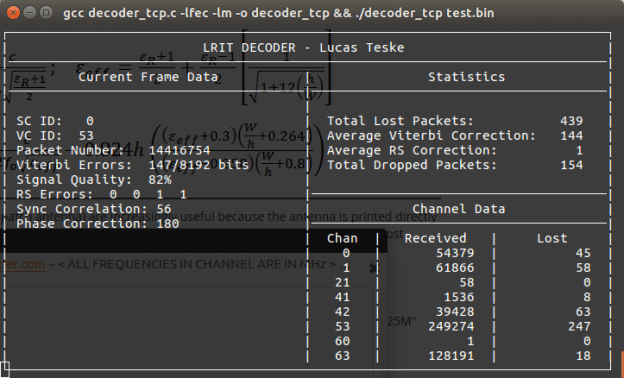
Last week we posted about Lucas Teske’s (@lucasteske) experience with setting up an antenna system that can receive the geostationary GOES weather satellites. He set up a dish antenna, feed, LNA and filter and was able to successfully receive the GOES signal with an RTL-SDR and Airspy.
Now Lucas has uploaded his second post where he discusses how to demodulate the GOES signal. The GOES satellites transmit a Low-Rate Information Transmission (LRIT) signal which contains full disk images of the earth as well as other weather data from the secondary Emergency Managers Weather Information Network (EMWIN) signal.
In order to demodulate the signal Lucas wrote a BPSK demodulator in GNU Radio. His post goes into good technical detail and shows exactly how the demodulator is constructed. Basically the the BPSK signal is first decimated down to 2.5e6, normalized with an AGC, then cleaned up with a Root Raised Cosine Filter. From there the signal goes through a Costas Loop PLL to receover the carrier wave, then a Clock Recovery MM block to recover the symbol clock. The data is then output to a TCP pipe for the decoder.
In the upcoming third part of his article Lucas will show us how to actually turn the demodulated data into an image of the earth.
With perfect Halloween timing, SDR enthusiast and ghost hunter Doug Haber has released his RTL-SDR compatible software called “gqrx-ghostbox”. This software supposedly turns your RTL-SDR into a electronic voice phenomenon (EVP) tool a.k.a a “Ghost Box”. Douglas explains what a Ghost Box is in the following blurb:
A ghost box is a device sometimes used by paranormal researchers to talk to spirits, the dead, disembodied entities, shape shifting lizard people, and other intra-dimensional fauna.
Some ghost boxes have electronics that give them distinct properties, and others are effectively radio scanners. This tool is of the radio scanning style.
Many examples of ghost box usage can be found on youtube. Generally, it involves asking questions and then listening for a response. Some people believe a medium or trance state is necessary in order for it to work. If you search for “ghost box” or “spirit box”, you will find information on different usage styles.
We’re not 100% sure if this is a late April fools joke, or a serious tool, but the code is real (it appears to just use GQRX to scan through frequencies), and at least these days when almost everything possible has already been tried with an RTL-SDR, this is something new!
Back in March of this year we posted about the release of the FlightAware "Pro Stick". The Pro Stick is FlightAware's ADS-B optimized RTL-SDR dongle. It uses a low noise figure LNA on the RF front end to reduce the system noise figure, thus improving the SNR at 1090 MHz. Because the added gain of the LNA can easily cause overload problems if there are other strong signals around, FlightAware recommend using one of their 1090 MHz ADS-B filters in front of the dongle to prevent overload.
FlightAware.com is a company that specializes in live air travel tracking. Most of their data comes from volunteers running RTL-SDR ADS-B receivers.
The new Pro Stick Plus RTL-SDR based ADS-B Receiver from FlightAware.
Over on their forums and on Amazon, they announced the device and specs. They wrote:
FlightAware is excited to announce the next evolution of USB SDR sticks for ADS-B reception! The new Pro Stick Plus USB SDR builds on the popular Pro Stick by adding a built-in 1090 MHz bandpass filter. The built-in filter allows for increased performance and range of reception by 10-20% for installations where filtering is beneficial. Areas with moderate RF noise, as is typically experienced in most urban areas, generally benefit from filtering. By integrating the filter into the SDR stick, we are able to reduce the total cost by more than 40% when compared to buying a Pro Stick and an external filter.
Specifications:
Filter: 1,075 MHz to 1,105 MHz pass band with insertion loss of 2.3 dB; 30 dB attenuation on other frequencies
Amp: 19 dB Integrated Amplifier which can increase your ADS-B range 20-100% more compared to dongles from other vendors which can increase range 10-20% over a Pro Stick in environments where filtering is beneficial
Native SMA connector
Supported by PiAware
R820T2 RTL2832U chips
USB powered, 5V @ 300mA
Note that this dongle is only for ADS-B at 1090 MHz, and not for 978 MHz UAT signals, as the filter will cut that frequency out.
Back in April, we did a review of the original Pro Stick. We found its performance on ADS-B reception to be excellent, but only when a filter was used. The low NF LNA theoretically improves the SNR of ADS-B signals by about 7-8 dB, but in reality there is too much gain causing signal overload everywhere, thus making reception impossible without the filter. Rural environments may not need a filter, but in a typical urban or city environment strong FM/TV/GSM/etc signals are abundant and these signals easily overloaded the Pro Stick when no filtering was used. This new Pro Stick Plus dongle completely solves that problem at a low cost with its built in filter.
Remember that if you are using a run of coax cable between the LNA and RTL-SDR, then it is more optimal to use an external LNA, like the LNA4ALL. Only an external LNA mounted near the antenna can help overcome coax, connector, filter and other losses as well as reducing the system noise figure. The FlightAware dongles are the optimal solution when they are mounted as close to the antenna as possible. This is usually the case when running the FlightAware feeder software on a Raspberry Pi.
We hope to soon review the Pro Stick Plus, however we assume it will operate nearly identically to the Pro Stick + FlightAware ADS-B filter combination.