Over on GitHub an interesting project that involves using an ultrasound transducer and RTL-SDR to create a low cost 2D ultrasound imager has been uploaded. Ultrasound imagers transmit acoustic sound waves with a transducer at frequencies between 1 - 5 MHz, and then listens for the audio reflections from objects in the audio waves path. This technique is commonly used in the medical field for imaging inside the body without using damaging ionizing radiation like with x-rays.
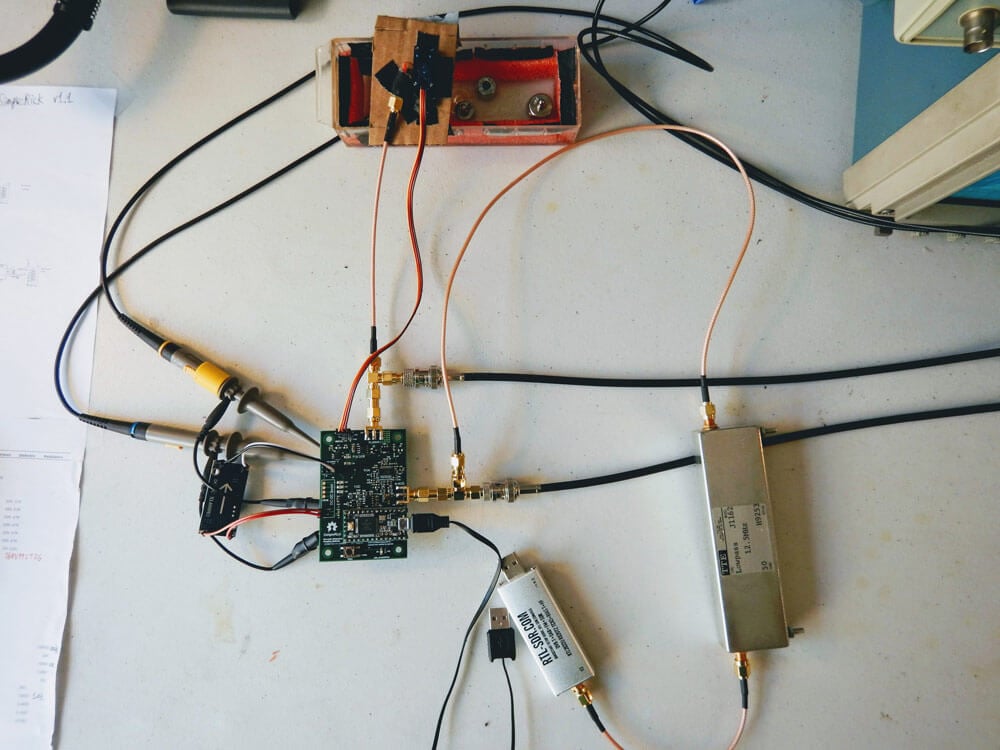
The project by wlmeng11 is based on the open un0rick hardware, which is an open source ultrasound imager. wlmeng11's idea is to simplify and lower the cost of the un0rick hardware by replacing some expensive components like the FPGA and ADC with a computer and RTL-SDR. The simplified hardware is called "SimpleRick" and PCB and firmware files are also available on GitHub.
The rtl_ultrasound setup
Regarding his choice to use SDR and RTL-SDR he writes:
Why SDR?
The analog signal produced by a B-mode ultrasound (ie. 2D imaging) is essentially an Amplitude Modulated (AM) signal. The signal's envelope (ie. amplitude) corresponds to boundary information in the physical media, and the signal's carrier frequency is equal to the resonant frequency of the transducer.
Most ultrasound systems take one of two approaches for data acquistion:
Direct sampling of the ultrasound signal: This method preserves the original signal in the time domain, accomodates any transducer frequency, and offers the best flexibility for post-processing and analysis. Both amplitude and phase information can be extracted the signal, so it is useful for both B-mode and Doppler mode imaging. However, this method requires a high sample rate ADC, as well as high bandwidth and storage for the digital data.
Envelope detection with analog hardware: Perform Amplitude Demodulation (typically with a diode-based rectifier and low pass filter) to yield an envelope signal, then acquire the envelope signal at a lower sample rate. This method reduces the bandwidth and storage requirements for the digital data, but there are a number of drawbacks:
Unless the low pass filter is adjustable, this method cannot accommodate different transducer frequencies.
The non-linearity of the diode may produce harmonic distortion.
All phase information in the signal is lost, rendering it useless for Doppler mode imaging.
It has been demonstrated by Peyton et al that quadrature sampling can be used to reduce bandwidth requirements in an ultrasound imaging system.
It turns out that quadrature modulation is essential to Software Defined Radio (SDR) because any type of amplitude modulation, frequency modulation, phase modulation, or combination of these can be expressed as a special case of quadrature modulation. Therefore, many of the software and hardware techniques used in SDR can be applied to ultrasound imaging.
Why RTL-SDR?
The RTL2832U chip in the RTL-SDR takes a hybrid approach for data acquisition. It employs a high sample rate ADC (28.8 Msps), followed by a software-configurable Digital Down Converter (DDC) that produces IQ data at a lower sample rate (up to 2.56 Msps), thus reducing bandwidth and storage requirements. We can then perform envelope detection in software.
Plus, the RTL-SDR is really cheap (under $25 on Amazon in the United States)! As such, there is a lot of software support and a large community for the RTL-SDR.
With a few software tweaks, it should be possible to substitute the RTL-SDR with a more expensive SDR (eg. AirSpy HF+, LimeSDR) for use cases that require better ADC resolution and SNR.
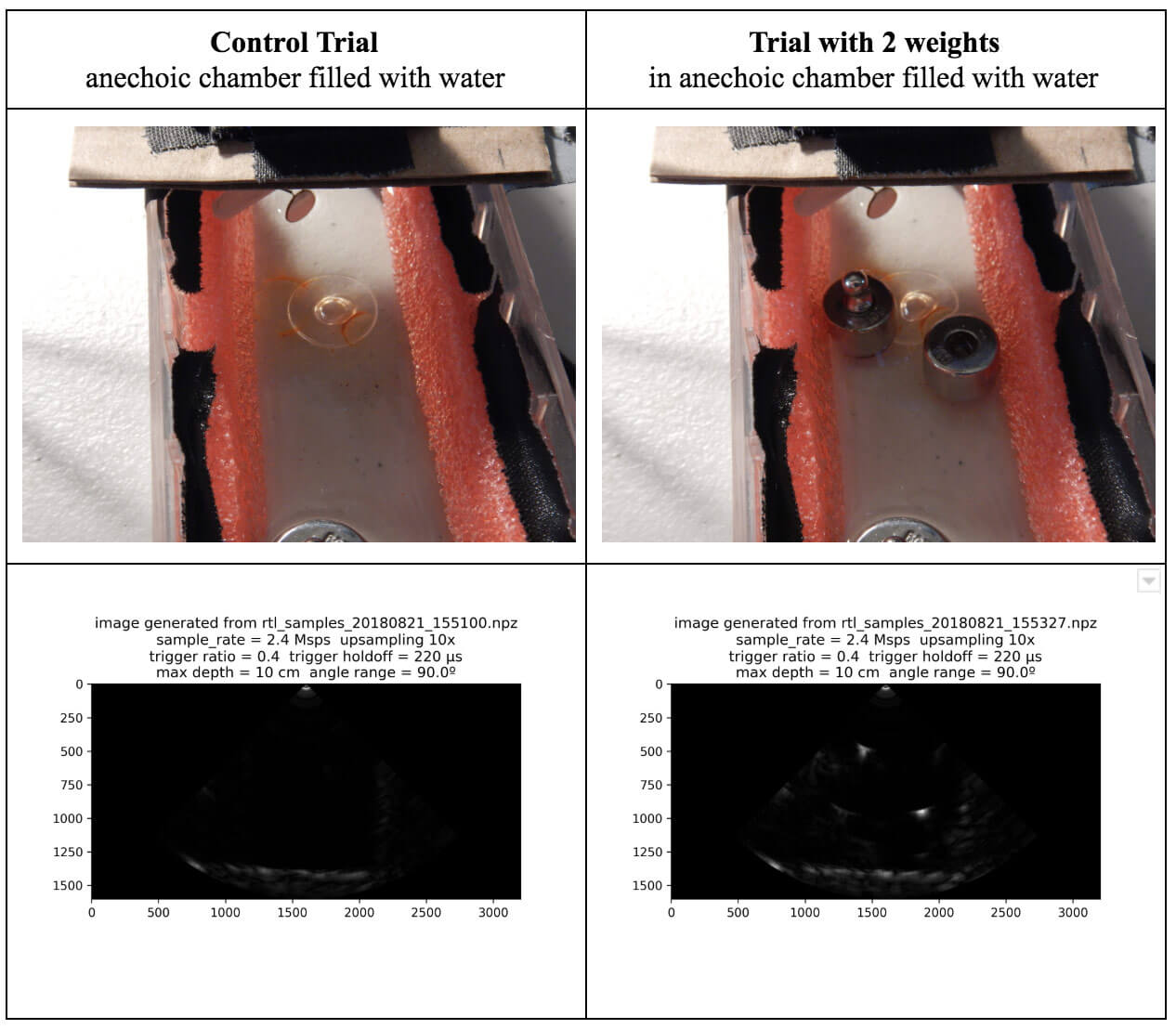
Some of his test results are available in his August 21 writeup. His test involves a pseudo-anechoic chamber with some steel balls to reflect the ultrasound wave. The ultrasound transducer is swept through the chamber using a servo. The results so far have been successful in reliably and repeatedly resolving imaging on objects that are about 1 cm in size.
rtl_ultrasound results
If you're interested in the combination of acoustic transducers and SDRs, then this previous post shows using a piezo to detect ultrasound echolocation sounds from bats.
Hackaday's Hack Chats are a weekly live community chat session where some knowledgeable guests are brought in to chat with the audience. This weeks upcoming chat on Friday is all about GNU Radio, a block based programming language that is commonly used with SDRs like the RTL-SDR. They write:
Our guests for this week’s Hack Chat will be Derek Kozel and Nate Temple, officers of the GNU Radio project. They’re also organizers of this year’s GNU Radio Conference. Also joining in on the Hack Chat will be Martin Braun, community manager, PyBOMBS maintainer, and GNU Radio Foundation officer.
GNU Radio is perhaps the most important bit of any software defined radio toolchain. This is the software that provides signal processing blocks to implement software defined radios. GNU radio is how you take a TV tuner USB dongle and pull images from satellites. You can use it for simulation, and GNU Radio is widely used by hobbyists, academics, and by people in industry.
The Hack Chat starts on Friday August 31, 2018 at noon PDT. You can leave a comment for the Hack Chat now by leaving a comment on the event page.
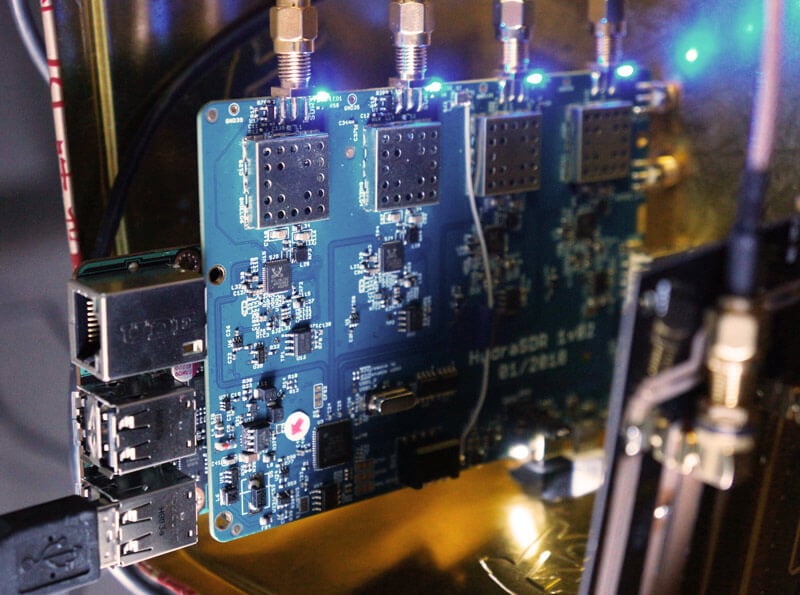
KerberosSDR (formerly HydraSDR) is our upcoming 4-input coherent RTL-SDR. It's designed for coherent applications like RF direction finding, passive radar, beam forming and more, but can also be used as a standard 4-channel SDR for monitoring multiple frequencies. In this post we demonstrate the direction finding application running on the TinkerBoard.
Reminder: If you have any interest in KerberosSDR, please sign up to our KerberosSDR mailing list. Subscribers to this list will be the first to know when KerberosSDR goes on preorder, and the first 100 sales will receive a discounted price.
KerberosSDR Updates
This week we've managed to get the KerberosSDR demo software made by Tamás Peto functioning on a TinkerBoard. The TinkerBoard is a US$60 single board computer. It's similar to a Raspberry Pi 3, but more powerful. We've also tested the app running on the Raspberry Pi 3 and Odroid XU4. The Pi 3 is capable of running the software but it is a little slow, and the Odroid XU4 is a little faster than the TinkerBoard. In the future we hope to further optimize the code so even Raspberry Pi 3's will be smooth.
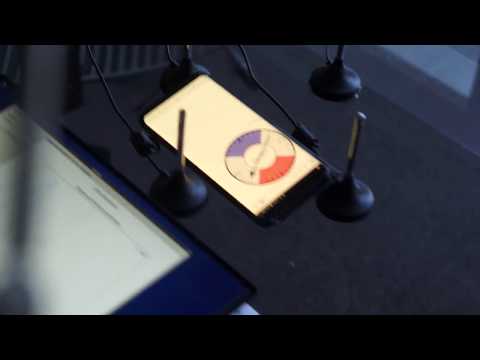
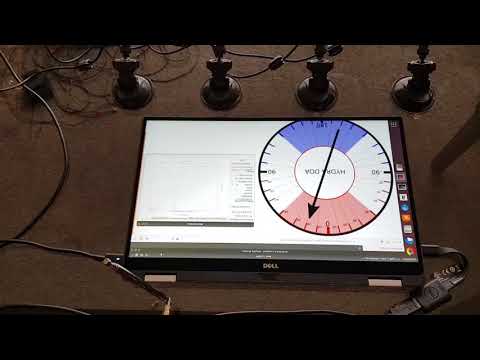
In the video below we used a circular array of four whip antennas connected to KerberosSDR. The TinkerBoard is connected to KerberosSDR and is set up to generate a WiFi hotspot, which we connect to with an Android phone and a Windows laptop. The Windows laptop connects to the TinkerBoard's desktop via VNC, and the Android phone receives an HTML/JavaScript based compass display via an Apache server running on the Tinkerboard. With this setup we can wirelessly control and view information from KerberosSDR and the TinkerBoard.
We've also tested the KerberosSDR system on a real signal, and have found it to work as expected. More demo's of that coming later.
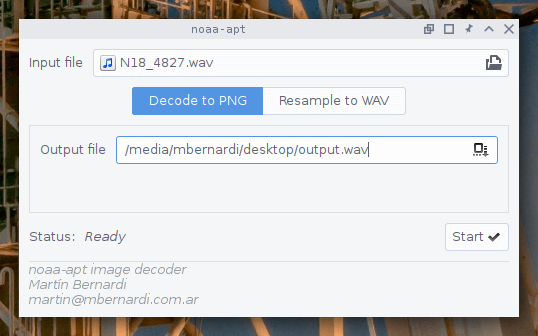
Over on GitHub user martinber has released a new NOAA APT image decoder that can run on both Linux and Windows. The decoder is called noaa-apt and takes a .WAV file of a NOAA satellite pass, and turns it into an image file. The .WAV file can be recorded in any SDR program like SDR#, HDSDR, GQRX etc. The program is programmed in Rust, and has ready to run binaries available for both Linux and Windows available on it's GitHub Releases page.
Compared to the features found in WXtoIMG the software is fairly basic, but as WXtoIMG has been abandoned it's good to see new APT decoders still being worked on. The software can also be used to simply resample the .WAV file into a sample rate required by other more featured decoders like aptdec.
NOAA weather satellites broadcast an Automatic Picture Transmission (APT) signal, which contains a live weather image of your area. With an RTL-SDR and antenna they can be received and downloaded every time one of the satellite's passes overhead. We have a tutorial on using an RTL-SDR with WXtoIMG available here.
The project is by Kazunori Miura who is the creator of the Soft66 range of RTL-SDR retrofit products. The kickstarter appears to be for the "Soft66IP", which has been around since early 2017. The main difference appears to be that now OpenWebRX is preloaded on the SDCard, and that there is a custom script running on the Orange Pi Zero which allows you to choose between OpenWebRX and HDSDR. Presumably clicking on HDSDR runs an rtl_tcp server, which can then be connected over the network.
The idea is that this system will be used together with software like OpenWebRX, which would enable the RTL-SDR and radio stream to be accessed online from anywhere in the world via an Ethernet connection. Examples of OpenWebRX receivers can be found on sdr.hu, just search for "RTL-SDR" on the page to find relevant examples.
There are several support options, with the main board (without Orange Pi Zero or RTL-SDR) starting at US$22, and US$88 for the main board including RTL-SDR, Orange Pi Zero, enclosure and SD card. The system could probably be home built for much cheaper, but there is a convenience in purchasing a ready to use system. Although if you're interested in HF and want an internet connected SDR, then you might be better off shelling out for a $299 KiwiSDR instead, which is also an OpenWebRX based SDR.
Thanks to a RTL-SDR.COM reader for submitting a tip about radiosondy.info, a weather balloon data aggregation website made by SQ6KXY. Weather balloons carry a sensor and transmitter payload called a radiosonde. These radiosondes transmit their data to a ground station via an RF signal, which is typically at around 400 - 406 MHz in most countries. With an RTL-SDR and decoder software (related tutorial) it is possible to receive and decode their weather data, and also often their GPS location data. The location data can be used to find and collect radiosondes once they reach the ground.
SQ6KXY has created a website called radiosondy.info which aims to aggregate and make weather balloon data received by contributors public. It is similar to sites like flightradar24 which aggregate ADS-B data from aircraft. The main page allows you to view radiosondes that are currently flying, and the archive of previous flights.
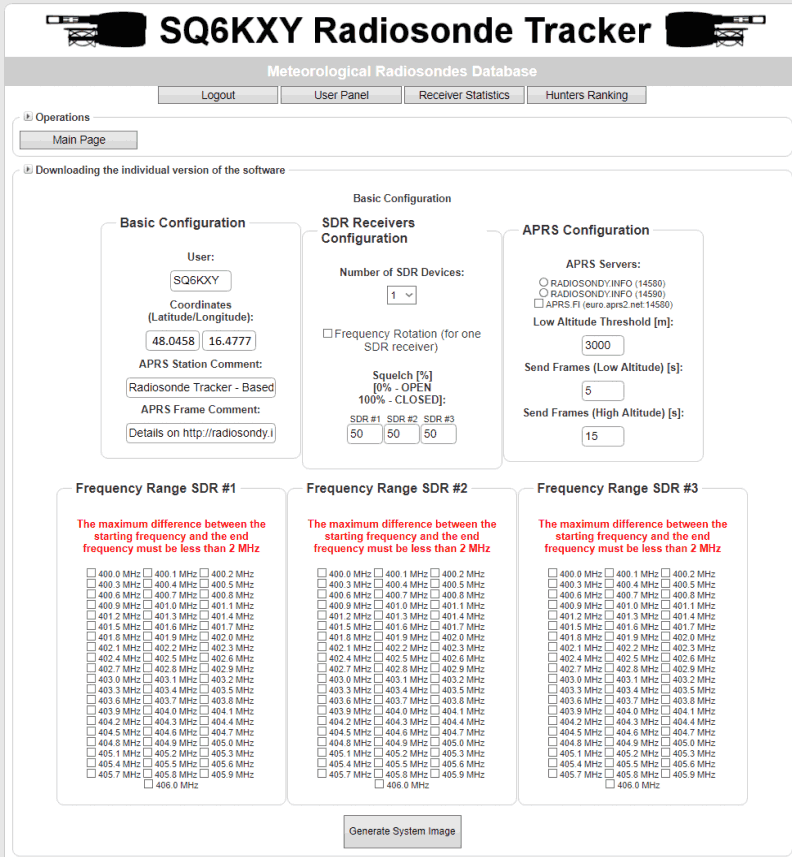
To make contributing to the site as simple as possible, SQ6KXY has created a custom image for the Raspberry Pi, which is automatically generated by the website for your particular user account, local radiosonde frequency requirements, and number of SDRs. They don't specifically mention it, but we assume that contributors are mostly using RTL-SDRs in their receivers. The custom image is available for generation after signing up.
Web tool to generate a custom Raspberry Pi Image for Radiosonde Tracking
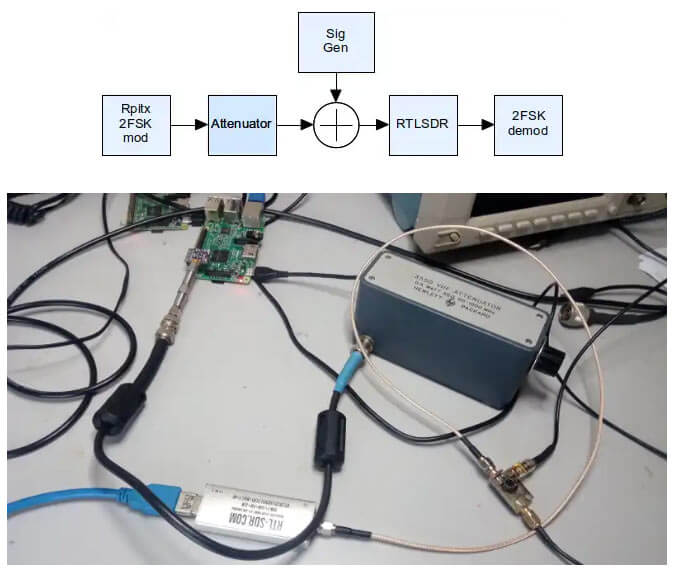
In the first test he uses RPiTX to generate a 2-FSK signal, which is then received and decoded by a RTL-SDR V3 connected to an attenuator and laptop. The Bit Error Rate (BER) is then measured while the attenuation is increased until the decoder fails. With this test he found a MDS somewhere between -115 dBm and -125 dBm, and a maximum input power of -30 dBm before clipping.
In another test he measures the RTL-SDR's ability to withstand a blocking CW signal. The results show that even with a 65 dB stronger signal just 7 kHz away, the 2-FSK modem system was able to continue working.
Finally he concludes:
So I figure for the lower HF bands this receivers performance is OK – the ADC quantisation noise isn’t likely to impact performance and the strong signal performance is good enough. An overload of -30dBm (S9+40dB) is also acceptable given the use case is remote communications where there is unlikely to be any nearby transmitters in the input filter passband.
Over the last few months we've been working on a 4-input coherent RTL-SDR called 'KerberosSDR' (formerly known as HydraSDR) that is designed to be a low cost way to get into applications such as RF direction finding, passive radar, beam forming and more. It can also be used as a standard 4-channel SDR for monitoring multiple frequencies as well.
Phase coherent RTL-SDRs have been worked on and demonstrated several times over the past few years, but we've been disappointed to find that so far there hasn't been any easy way to replicate these experiments. The required hardware has been difficult to build and access, and the software has been kept as unreleased closed source or has been too complicated to install and use. With KerberosSDR we aim to change that by making phase coherent applications easier to access and run by providing ready to use hardware and software.
Thanks to our developer Tamás Peto, a PhD student at Budapest University of Technology and Economics whom we hired via the ad in our previous post, and the Othernet (formerly Outernet) engineering team who are our partners on this project, we've been able to build a working system, and demonstrate coherent direction finding and passive radar working as expected (demo videos below). We plan to eventually release Tamás' code as open source so that the entire community can benefit and build on it. Also if KerberosSDR turns a profit, we plan to reinvest some of the profits into continually improving the software and expanding the list of use cases.
KerberosSDR will be usable for coherent applications from ~80-100 MHz up to 1.7 GHz (as a standard receiver it will work down to 24 MHz like a regular RTL-SDR). The lower coherent limitation is due to the phase calibration board, and could be improved by custom creating a larger calibration PCB.
At the moment we are finalizing our prototype, and plan to begin final production within the next 2-3 months.
If you have any interest in KerberosSDR, please sign up to our Kerberos mailing list.
Direction Finding
KerberosSDR can be used to find the bearing towards a signal using it's coherent direction finding capabilities. The software by Tamás currently implements several direction finding algorithms such as Bartlett, Capon, Maximum Entropy (MEM) and MUSIC. In the video below we show a quick test of the direction finding system working with a HackRF being used as a signal source, and four dipole antennas connected to KerberosSDR in a linear array. The MUSIC algorithm is used.
KerberosSDR Direction Finding Test
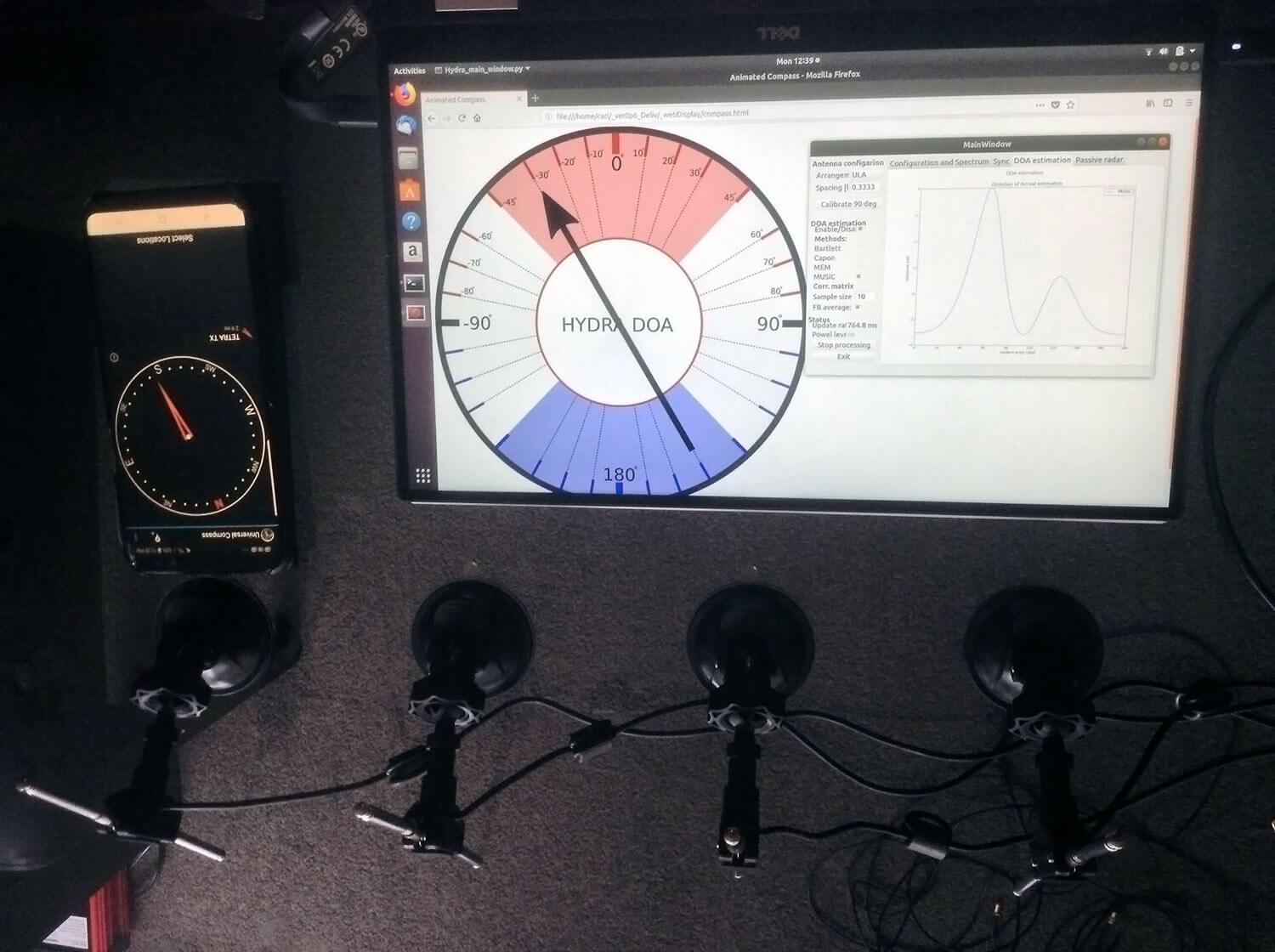
In the image below we also attempted to find the direction towards a known TETRA transmitter. We were able to confirm the direction with an Android compass app that points towards the known transmitter location. As the two angles match, we can be confident that Kerberos is finding the correct direction to the transmitter.
Finding the direction of a TETRA Transmitter
Passive Radar
KerberosSDR can also be used for passive radar. Normal radar systems work by transmitting a pulse of RF energy, and listening to the reflections from objects like planes, cars and ships. Passive radar works by using already existing transmitters such as those for FM/TV and listening for reflections that bounce of objects.
With a simple passive radar system you need two directional antennas and two coherent receivers. One antenna points at the transmitting 'reference' tower, and the other at the 'surveillance' area where you want to listen for reflections. It's important to try and keep as much of the reference signal out of the surveillance antenna as possible, which is why directional antennas like Yagi's are used.
The result is a doppler vs time delay graph, where the reflection of aircraft, cars, ships and other objects can be seen. The doppler gives you the speed of the object relative to your antenna and the transmitting tower, and the time delay gives you the distance relative to your antenna and the transmitter tower.
Below is an example time lapse video of KerberosSDR being used for passive radar. The reference antenna points towards a DVB-T transmitter at 588 MHz, and the surveillance antenna overlooks a small neighborhood, with aircraft sometimes flying over. The antennas we used were two very cheap TV Yagis.
You can constantly see the reflections from vehicles at small doppler values (low speeds), and every now and then you see an aircraft reflection which shows up at much higher doppler (speed) and further time delay (distance) points.
More information about KerberosSDR
KerberosSDR includes:
4x Coherent R820T2 based RTL-SDR dongles with standard 24 MHz - 1.7 GHz frequency range
On board GPIO switched wide band noise source for sample sync and phase calibration
Special phase calibration PCB for 4x inputs. Required to make the Kerberos phase coherent.
On board USB Hub, so only one USB port is required on the PC
Shielded metal enclosure
KerberosSDR can also be extended to 8x receivers by daisy chaining two boards together, so that their clocks and noise sources are connected. We've also taken into account undesirable effects such as heat related PLL drift which can be an issue for phase coherence.
At the moment we are also investigating whether singleboard computers like the Raspberry Pi 3 or Tinkerboard can be used, and there will be a header available for powering them via the Kerberos PCB. In the future we also plan to work on optimizing the code and potentially using CUDA/OpenCL GPU optimizations for passive radar so everything runs smoothly.
Once released we plan to have extensive tutorials and documentation that show exactly how to set up and replicate direction finding and passive radar experiments with low cost antennas.
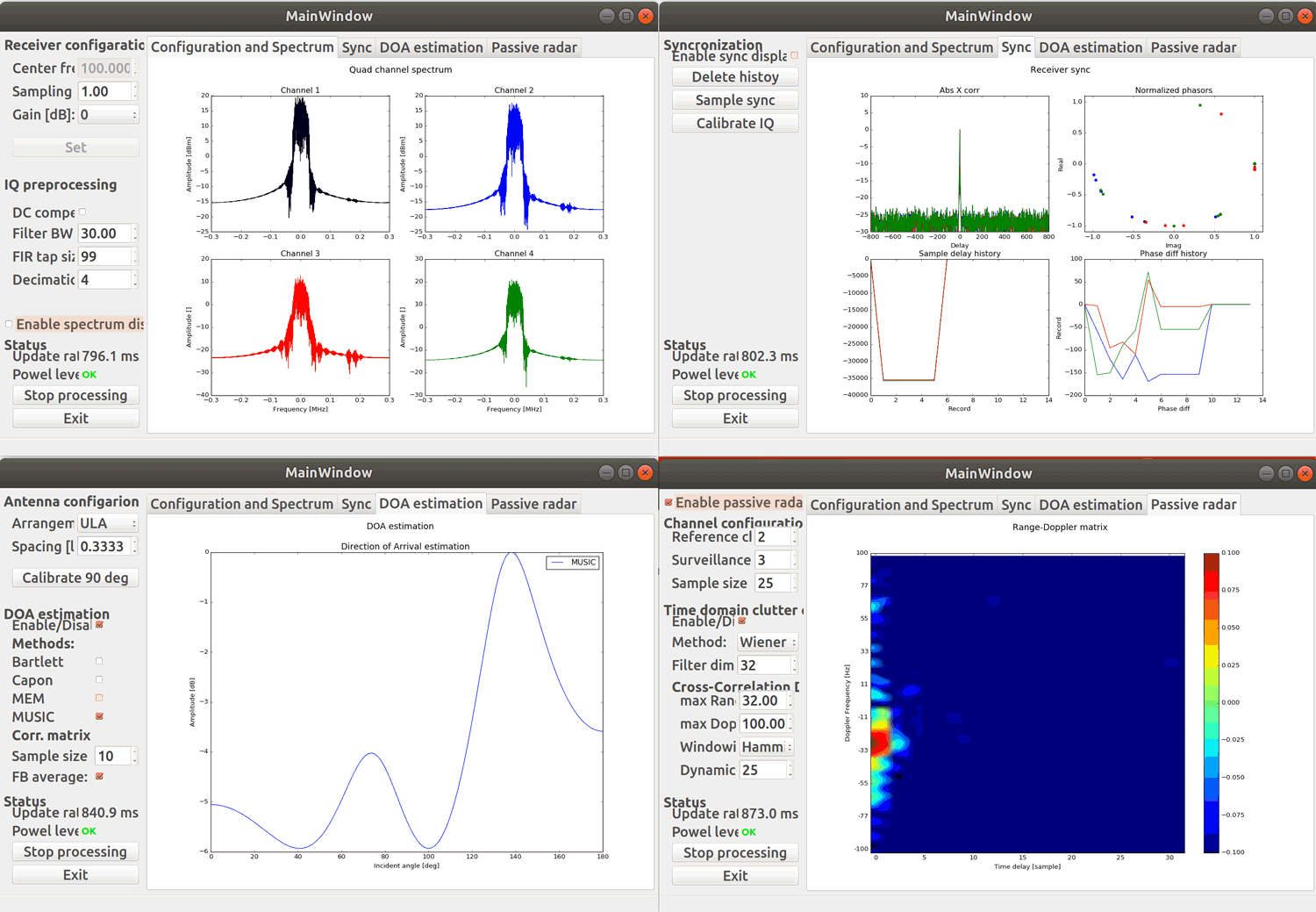
Screenshots of KerberosSDR software:
Screenshots of each KerberosSDR software screen
Remember, if you're interested please sign up to the KerberosSDR mailing list for announcements and the chance to get in early with the cheaper first 100 units.
Be on the look out for more interesting demos that will be posted in the coming weeks!
[the_ad id="14114"]
Update: Please note that due to a Trademark complaint, we have changed the name of this unit from HydraSDR to KerberosSDR.
KerberosSDR Updates: 27 August 18
This week we've managed to get the KerberosSDR demo software made by Tamás Peto functioning on a TinkerBoard. The TinkerBoard is a US$60 single board computer. It's similar to a Raspberry Pi 3, but more powerful. We've also tested the app running on the Raspberry Pi 3 and Odroid XU4. The Pi 3 is capable of running the software but it is a little slow, and the Odroid XU4 is a little faster than the TinkerBoard. In the future we hope to further optimize the code so even Raspberry Pi 3's will be smooth.
In the video below we used a circular array of four whip antennas connected to KerberosSDR. The TinkerBoard is connected to KerberosSDR and is set up to generate a WiFi hotspot, which we connect to with an Android phone and a Windows laptop. The Windows laptop connects to the TinkerBoard's desktop via VNC, and the Android phone receives an HTML/JavaScript based compass display via an Apache server running on the Tinkerboard. With this setup we can wirelessly control and view information from KerberosSDR and the TinkerBoard.
We've also tested the KerberosSDR system on a real signal, and have found it to work as expected. More demo's of that coming later.
KerberosSDR Direction Finding Test 2: Tinkerboard + Circular Array
KerberosSDR Prototype with TinkerBoard Running Computations
KerberosSDR Updates: 4 September 2018
In this post we'll show an experiment that we performed which was to pinpoint the location of a transmitter using KerberosSDR's coherent direction finding capabilities. RF direction finding is the art of using equipment to determine the location of a transmitting signal. The simplest way is by using a directional antenna like a Yagi to try and determine the bearing based on signal strength. Another method is using a pseudo-doppler or coherent array of antennas to determine a bearing based on phase information.
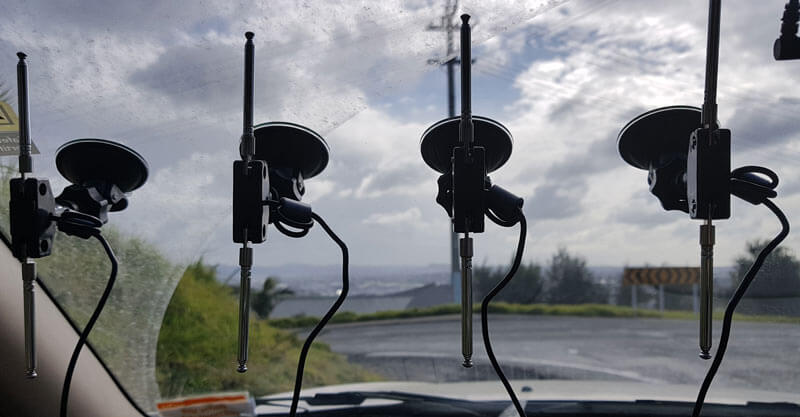
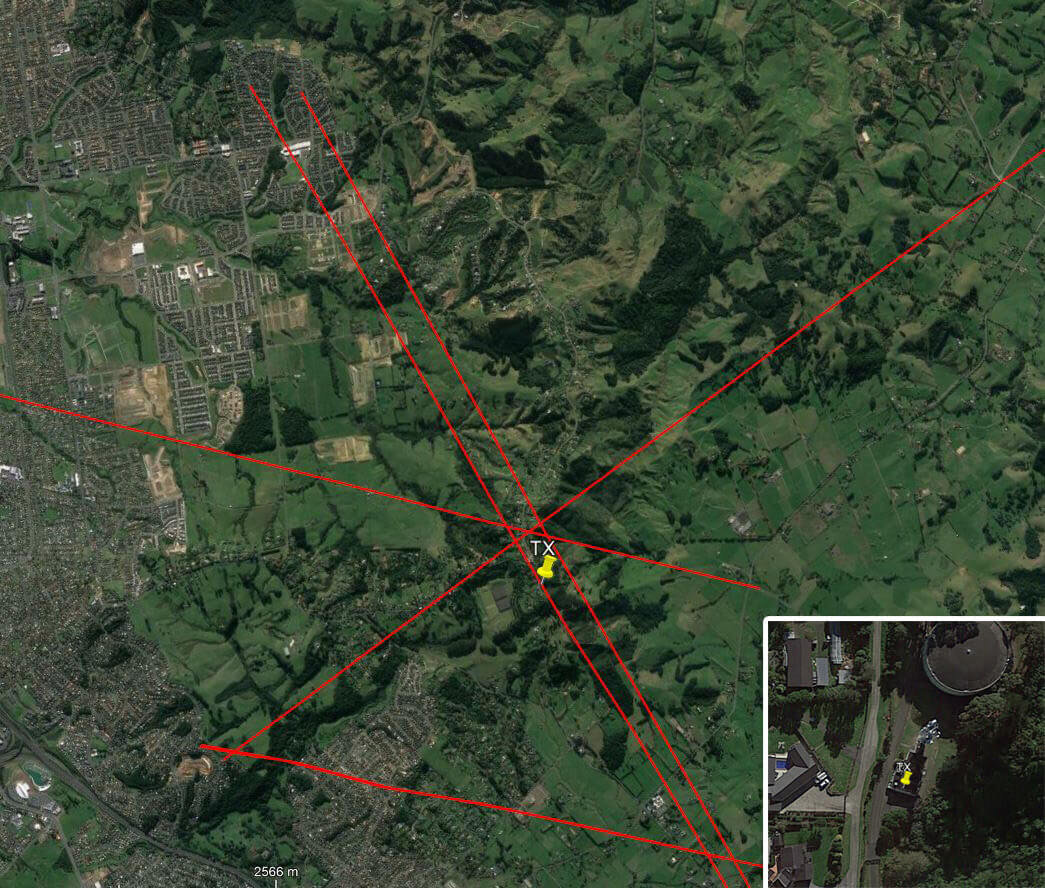
For the test we tuned the KerberosSDR RTL-SDRs to listen to a signal at 858 MHz and then drove to multiple locations to take direction readings. The antennas were set up as a linear array of four dipole antennas mounted on the windshield of a car. To save space, the dipoles were spaced at approximately a 1/3 the frequency wavelength, but we note that optimal spacing is at half a wavelength. The four dipole antennas were connected to KerberosSDR, with a laptop running the direction finding demo software.
Low cost direction finding array mounted to vehicle windshield.
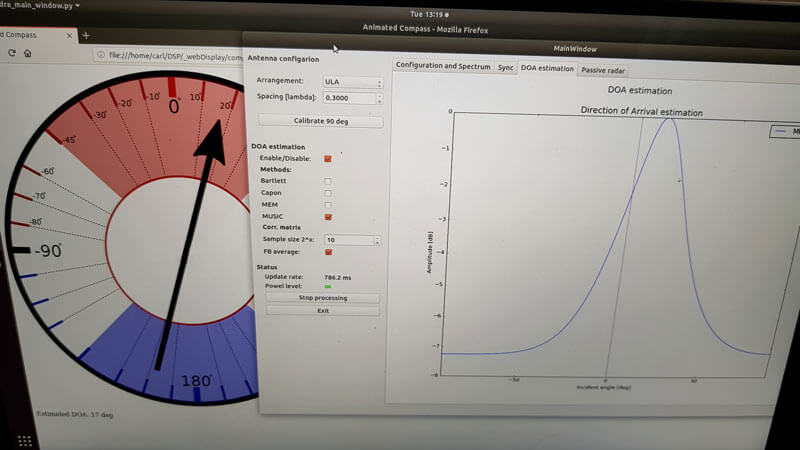
Our open source demo software (to be released later when KerberosSDR ships) developed by Tamás Peto gives us a graph and compass display that shows the measured bearing towards the transmitter location. The measured bearing is relative to the antenna array, so we simply convert it by taking the difference between the car's bearing (determined approximately via road direction and landmarks in Google Earth) and the measured bearing. This hopefully results in a line crossing near to the transmitter. Multiple readings taken at different locations will end up intersecting, and where the intersection occurs is near to where the transmitter should be.
KerberoSDR SDR Directing Finding DOA Reading
In the image below you can see the five bearing measurements that we made with KerberosSDR. Four lines converge to the vicinity of the transmitter, and one diverges. The divergent reading can be explained by multipath. In that location the direct path to the transmitter was blocked by a large house and trees, so it probably detected the signal as coming in from the direction of a reflection. But regardless with four good readings it was possible to pinpoint the transmitting tower to within 400 meters.
In the future we hope to be able to automate this process by using GPS and/or e-compass data to automatically draw bearings on a map as the car moves around. The readings could also be combined with signal strength heatmap data for improved accuracy.
This sort of capability could be useful for finding the transmit location of a mystery signal, locating a lost beacon, locating pirate or interfering transmitters, determining a source of noise and more.
KerberosSDR pinpointing a transmitters location
KerberosSDR Updates 7 September 2018
For this test we parked our car to the side of a highway and pointed a cheap DVB-T Yagi antenna towards a DVB-T transmission tower, and another cheap Yagi down the road. The video shown below displays the results captured over a 5 minute period. The blips on the top half of the display indicate vehicles closing on our location (positive doppler shift), and the blips on the bottom half indicate objects moving away (negative doppler shift).
DVB-T Antennas In Car
The resolution of each individual vehicle is not great, but it is sufficient to see the overall speed of the highway and could be used to determine if a road is experiencing traffic slowdowns or not. When larger vehicles pass by it is also obvious on the display by the brighter blip that they show. The display also shows us that the highway direction coming towards us is much busier than the direction moving away.
In the future we'll be working on optimizing the code so that the display updates much faster and smoother. It may also be possible in the future to use the third and fourth tuners to obtain even greater object resolution.
KerberosSDR Updates 27 September 2018
In this post we're showing some more passive radar demos. The first video is a time lapse of aircraft coming in to land at a nearby airport. The setup consists of two DVB-T Yagi antennas, with KerberosSDR tuned to a DVB-T signal at 584 MHz. The reference antenna points towards a TV tower to the west, and the surveillance antenna points south. Two highlighted lines indicate roughly where reflections can be seen from within the beam width (not taking into account blockages from mountains, trees etc).
The second video shows a short time lapse of a circling helicopter captured by the passive radar. The helicopter did not show up on ADS-B. On the left are reflections from cars and in the middle you can see the helicopter's reflection moving around.
We are expecting to receive the final prototype of KerberosSDR within the next few weeks. If all is well we may begin taking pre-orders shortly after confirming the prototype.