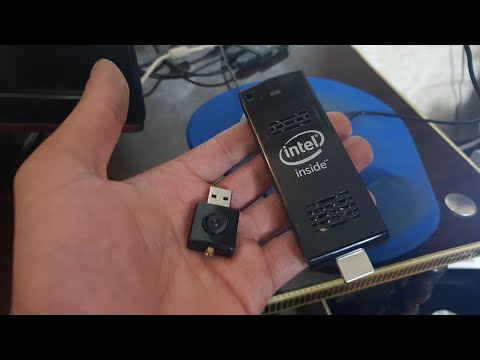
Thank you to M Khanfar for submitting news about his custom Linux kernel which allows an RTL-SDR and GQRX to run smoothly and with sound on an Intel Compute Stick. The Intel Compute Stick is a full dongle based computer the size of a pack of gum with pricing that starts from US$120. It has a Quad Core Atom Processor, 2GB RAM, 32 GB of built in storage and an HDMI out port. By default the stick comes with Windows 10 installed, but M Khanfar notes that it is very sluggish.
Instead of the sluggish Windows 10 OS, M Khanfar decided that he wanted to run Ubuntu Linux instead. However he found that the standard Ubuntu image did not have support for audio over HDMI or WiFi on the Compute stick. So he built his own custom kernel with some patches to fix this issue. With the issue fixed, GQRX with an RTL-SDR now runs smoothly with full audio support, and rtl_tcp can also be run over WiFi.
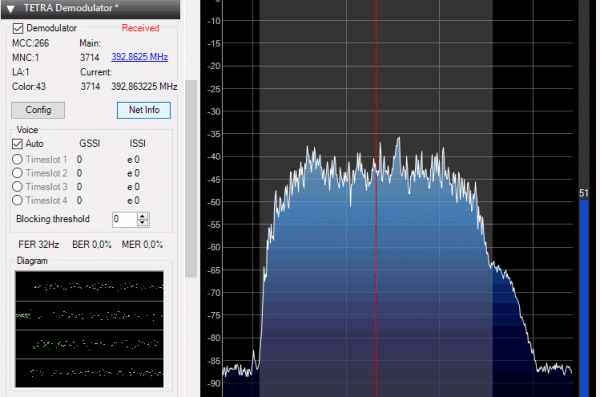
Vasilli has recently released the SDR# TETRA plugin on his website RTL-SDR.RU (note that the site is in Russian, but can be translated with the Google Translate option in the top right of the page). Previously it was only available via ever changing forum links, so it's good to see that it has a permanent home now for the latest version. This plugin allows you to listen to TETRA digital voice via SDR#, without needing to set up any complicated GNU Radio based receivers which were necessary in the past.
The features include (note Translated from Russian):
Receiving a signal from the BS band 25kHz and modulation Pi / 4-DQPSK;
Automatic adjustment of the reception frequency;
Displays information about the BS;
Displays ISSI, GSSI subscribers in the channels (for open channels only);
Displays a service exchange network (for open channels only);
It allows you to listen to the channels in manual or automatic mode selection (only open channels);
It allows to filter and distribute the listening priority specified for groups (GSSI);
It displays a message with the location (just a short message format)
The current features not yet implemented are:
And listen to correctly display any encoded information in a network;
Display SDS type 4 (short messages);
Record audio from the channels (menu added, but does not work);
We also note that as discussed in a previous post there is a companion program for this plugin called TETRA Trunk Tracker.
Over on YouTube Corrosive from channel SignalsEverywhere has uploaded a new video in his series on Digital Amateur Television (DATV). The new video shows us how to use a transmit capable SDR like a LimeSDR or PlutoSDR to transmit DATV with a free Windows program called DATV Express.
In the video he explains the various transmit and video encoding settings, and then demonstrates the signal being received on SDRAngel with an RTL-SDR (which he explained in his previous video)
DATV DVB-S Transmitter With a LimeSDR or Pluto SDR and DATV Express
Es'hail 2 was launched last November and it is the first geostationary satellite to contain an amateur radio transponder. The satellite is positioned at 25.5°E which is over Africa. It's reception footprint covers Africa, Europe, the Middle East, India, eastern Brazil and the west half of Russia/Asia.
Although the satellite was launched last year, turning on the amateur transponders has been slow because the commercial systems of the satellite have higher priority for testing and commissioning. However, within the last day the Es'hail 2 team have now begin testing the amateur transponder, and the test signal has been successfully received by several enthusiasts (just check out the Twitter feed). There also appears to have already been a suspected pirate CW signal broadcasting "WELCOME DE ES2HAIL". Actual uplink use of the satellite is not currently wanted, and from the Amsat forums one of the engineers writes:
Before the IOT starts there will be a TRR (test readyness review) in front of the customer. All the testplans and test-specifications will be reviewed. When the test is done there will be a TRB (test readyness board). In the TRB they have to show/present all the measurement results (e.g. inband performance like Gainflatness, Groupdelay... aso.) and compare these results with the specification in the contract. Each unwanted signal makes the measurement difficult and needs to be explained or leads to a so named NCR (non conformance report).
The IOT will be done in shifts/nightshifts and with unwanted signals (if not explain able) some measurements needs to start again and again and leads in addition to a delay for the handover and operation of the satellite.
Maybe that helps to understand why it is really important to have only the IOT uplink signal.
To measure the pattern of each antenna the satellite will be moved east/west by the propulsion system of the DS2000 Bus and the signal level is measured by the IOT station on ground (some cuts) .
The commercial beacon can maybe be switched from LEOP Omni antenna to on station antenna when the satellite is placed in the final slot. This should be the reason for the change of the commercial Ku Band beacon signal level the last days.
If you are interested in receiving Es'hail 2, but live outside the footprint, or don't have a receiver then you can use Zoltan's OpenwebRX live stream of the narrow band portion of the Es'hail 2 downlink. At the moment the beacon doesn't appear to be transmitting, but we expect it to be on and off during the next few days. In his set up he uses an RTL-SDR V3, Inverto LNB, 90cm dish, a DIY bias tee and a Raspberry Pi 3.
He also took a recording of the pirates CW transmission shown in the video below.
Thanks to "Lolo sdr" for submitting his videos that show his process for receiving and decoding Meteor M2 weather satellite images in Windows with an SDRplay and SDR-Console V3. Since the SDRplay is not supported by SDR#, it is not possible to use Vasilli's excellent Meteor Demodulator plugin (site in Russian, please use the Google Translate option) which is only available for SDR#.
Lolo's method gets around this limitation by initially recording an IQ file of the satellite pass in SDR-Console V3, then opening that IQ file in SDR# via the Fileplayer plugin, which is also by Vasilli and available here. The process is a bit of extra work, and the image isn't live, but the image comes out clearly in the end.
The videos are shown below, and subtitles are available in English, French and Italian via the YouTube player options.
Recibir y decodificar Satélite Meteor M2 con SDRplay, parte 1 de 2, grabar el pase, con subtitulos.
Recibir y decodificar Satélite Meteor M2 con SDRplay, parte 2 de 2, decodificar imagen y corrección.
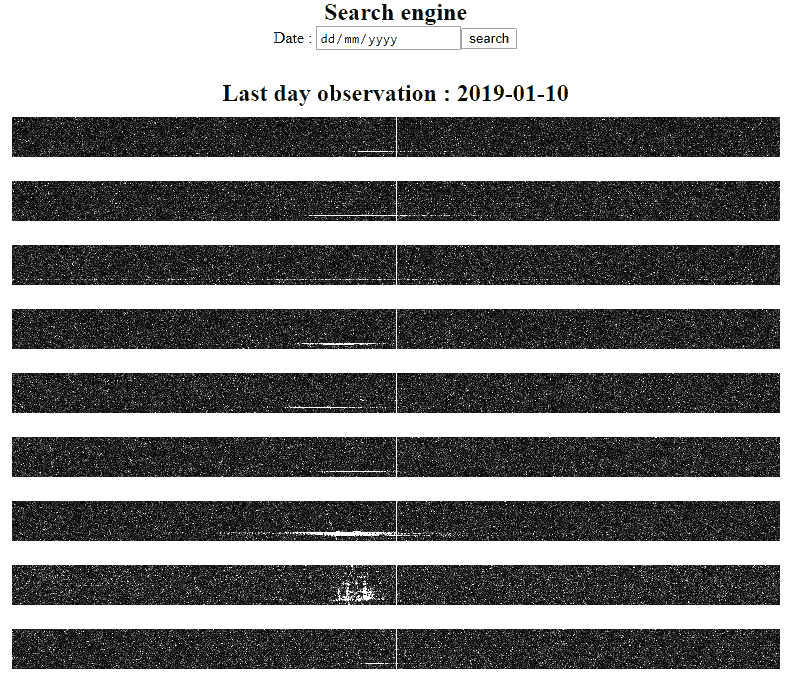
Thank you to Florent for submitting his website which contains a live log of his meteor scatter observations. Meteor scatter occurs when radio signals reflect off the ionized trail left behind by meteors when they enter the atmosphere. This trail is highly RF reflective, so it can allow distant radio stations to be briefly received.
His set up consists of an RTL-SDR dongle running on a Raspberry Pi 3. His antenna is a homemade 6 element Yagi. Florent is based in France and listens for reflections from the Graves radar at 143.05 MHz. His software captures 768 Hz worth of bandwidth every 0.5s, and then uploads and displays the spectrum plot on his website. When the Graves radar signal is visible on the spectrum, it is an indication of a meteor having entered the atmosphere (or possibly an aircraft).
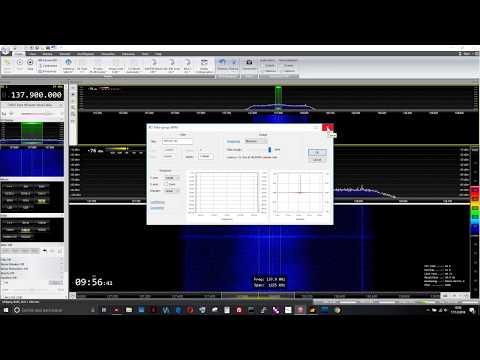
If you are interested in other peoples live meteor scatter streams, then there is another site at livemeteors.com which displays a live video of an SDR# screen looking for meteor echoes.
Some Meteor Scatter Logs displayed on Florents website
GNU Radio is a very powerful open source platform for implementing various digital signal processing (DSP) algorithms. It is very commonly used with software defined radios like the RTL-SDR, as well as much higher end units. The community that uses GNU Radio is very large, and so every year they hold a conference that highlights some of the most interesting applications and developments related to GNU Radio. The 2018 GNU Radio conference was held in Las Vegas during September 2018. Recently they have uploaded the talks to YouTube, and below we're posting some of our favorites. The full list can be found on their YouTube channel.
Keynote Talk: SatNOGs
In this keynote talk Manolis Surligas discusses the SatNOGs project. SatNOGs is a non-profit organization creating an open source and volunteer based satellite ground station network.
GRCon18 - Keynote: SatNOGs
Open Source Radio Telescopes
John L. Makous discusses his work in creating low cost and home made horn antenna radio telescopes designed to receive the 21cm hydrogen line and other astronomical objects and phenomena. The idea is to provide a low cost solution and easy to build telescope to use in schools.
GRCon18 - Open Source Radio Telescopes
Enter the Electromagic Spectrum with the USRP
Nate Temple gives us an overview of several signals that have been decoded with GNU Radio flowgraphs.
GRCon18 - Enter the Electromagic Spectrum with the USRP
Software Defined Radar Remote Sensing and Space Physics
Juha Vierinen discusses using a USRP to measure propagation conditions with ionospheric chip sounders, and improvements to chirp sounders by using spread spectrum noise. He also discusses various other radar techniques and applications.
GRCon18 - Software Defined Radar Remote Sensing and Space Physics
If you weren't already aware, over the past few months we've been working with the engineering team at Othernet.is to create a 4x Coherent RTL-SDR that we're calling KerberosSDR. A coherent RTL-SDR allows you to perform interesting experiments such as RF direction finding, passive radar and beam forming. In conjunction with developer Tamas Peto, we have also had developed open source demo software for the board, which allows you to test direction finding and passive radar. The open source software also provides a good DSP base for extension.
If you're interested and missed out in the early campaign, don't worry we still have about 250 units left from this batch for sale at a price of $140 + shipping over on our Indiegogo Campaign.
Demo Program Updates
Over the past few weeks we've been working on a few code speed improvements to the demo software, and we now believe that it should be fast enough to run on a Pi 3 B+ at decent update rates. In particular the passive radar display frame rate has been improved and we're able to get about 1 FPS on a Tinkerboard now.
We will soon release the full code, but for now you can see the main two libraries developed by Tamas' that are used in the KerberosSDR code. These libraries contain the direction finding and passive radar processing algorithms.
pyAPRIL - Python Advanced Passive Radar Library. Available on PyPi and GitHub
pyArgus - Python Beamforming and Direction Finding Algorithms. Available on PyPi and GitHub.
Android Direction Finding Companion App Updates
Over the holidays we've been working on a simple companion Android app for the direction finding feature. Using the GPS and/or compass sensors on the Android phone, and the transmitter bearing given by the KerberosSDR we can plot a bearing towards the transmitter that we are tuned to.
The phone connects to a laptop/SBC WiFi hotspot running the KerberosSDR Linux software, and reads the bearing via a simple php HTML server.
Driving around with the KerberosSDR gives better results than when stationary as we can take multiple readings at different points which helps to average out multipath distortions.
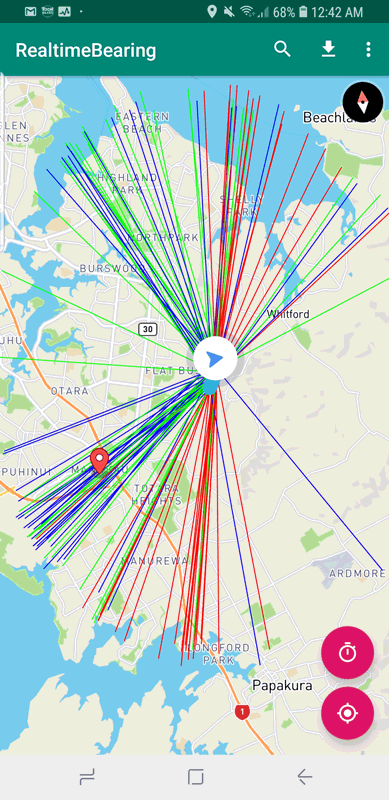
In the image below we used a linear antenna array of four dipoles attached to the windscreen of a car. KerberosSDR was tuned to a TETRA transmitter at 858 MHz.
We drove down a street and then back up it. The red lines indicate the direction of the car as determined by GPS, the blue lines indicate the forward direction towards the transmitter, and the green lines the reverse direction. (a linear antenna array won't know if the transmitter is in front or behind it).
You can see that the majority of blue/green lines point towards the TETRA transmitter which we've marked with a red location marker at the known location.
KerberosSDR Results from a Linear Antenna Array of Dipoles
Getting a bearing from GPS requires that you are moving. However if you are stationary it is also possible to use the compass sensor in the Android app, but Android compass sensors are not particularly accurate.
We also tested the app with a circular array of antennas and found it to work well too. A circular array has the benefit over a linear array of providing only one direction towards the detected signal, but may be more susceptible to multipath issues. In our test the circular array was simply four magnetic whips placed on top of a car.
KerberosSDR using Whip Antennas in a Circular Array on a Vehicle
This time we then drove around for a longer time while logging the data in the Android app. We can see that the majority of blue lines point towards the known transmitter location. Blue lines pointing away from the transmitter may be due to multipath or a briefly incorrect GPS heading (e.g. during a turn). Sometimes reflections or refractions of the signal can be more likely to be picked up if the direct path to the transmitter is really blocked. However if you have enough data points from driving around, it becomes much more clear where the actual transmitter is.
KerberosSDR Results from the Circular Array
Manufacturing Updates
We now have some pictures of the boards being manufactured at the factory. Unfortunately we are behind our initial shipping target of mid-Jan due to the previous unexpected payment delays from Indiegogo, and because of this we may hit the Chinese New Year holidays which could delay us further as factories take a 2 week holiday starting late Jan. We're really hoping to have them shipped off just before then, but we don't know if we can beat the clock. I know some of you are anxious to get started with KerberosSDR, and so I do apologize for the delay.
KerberosSDR in it's metal case (no screen printing yet)